Create Passport Size Photos Online in 2 Mins for Free – No App Needed!

Official photos for documents such as passports, visas and IDs have historically been an expensive and time-consuming chore. Either you spend precious minutes hunting down photo booths at the last minute in hope of taking decent shots in one try or you book an appointment at an expensive studio – both scenarios consuming both both time and money. But what if there were an easier solution – such as creating passport size photos online instead?

Welcome to the future of document photos. This guide will introduce you to a powerful free passport photo maker tool from EzyToolz.com that puts everyone-from individuals to small business owners-in complete control. We’ll walk you through everything you need to know, from taking the perfect picture with your phone to generating a print-ready sheet in seconds, with no technical skills or app installation required.

Why Create Passport Size Photos Online with Our Tool?

In a world full with complex software and pricey tools, our online Passport Photo Maker stands out by being easy, powerful, and absolutely free. It’s more than just a cropping tool; it’s a complete solution meant to make your life easier. Here’s why you should utilize it for your next ID photo needs.

  • Massive Cost Savings: Professional photo studios and automated photo booths often charge a premium for a limited collection of images. Our tool is 100% free to use. Create as many images as you need for yourself and your family without spending a single rupee.
  • Unmatched Convenience and Speed: Why travel and wait in line? Our tool works immediately in your web browser. The entire process, from uploading your photo to downloading the final print sheet, may be accomplished in within five minutes.
  • Get the Perfect Shot Every Time: Photo booths give you one or two chances to do it correctly. When you design your own passport photo at home, you are in charge. Take as many images as you like with your smartphone until you get one you’re happy with, guaranteeing you look amazing on your official documents.
  • Guaranteed Compliance with Official Standards: Our tool reduces the concern of rejection. It comes pre-loaded with the exact size and composition criteria for various countries, including the USA (2×2 inch), UK, India, and the Schengen visa. The on-screen cropping guide ensures your photo meets tight regulatory restrictions.
  • Empower Your Business: Photo studios, print shops and entrepreneurs alike can use our platform to launch or improve a passport photo service with instant, compliant photos at zero software investment – creating a new revenue stream in no time at all!

How to Use Our Tool (Step-by-Step Guide)

Our Passport Photo Maker features an easy 4-step process. Even those new to editing photos will find it extremely intuitive; here is a detailed walkthrough:

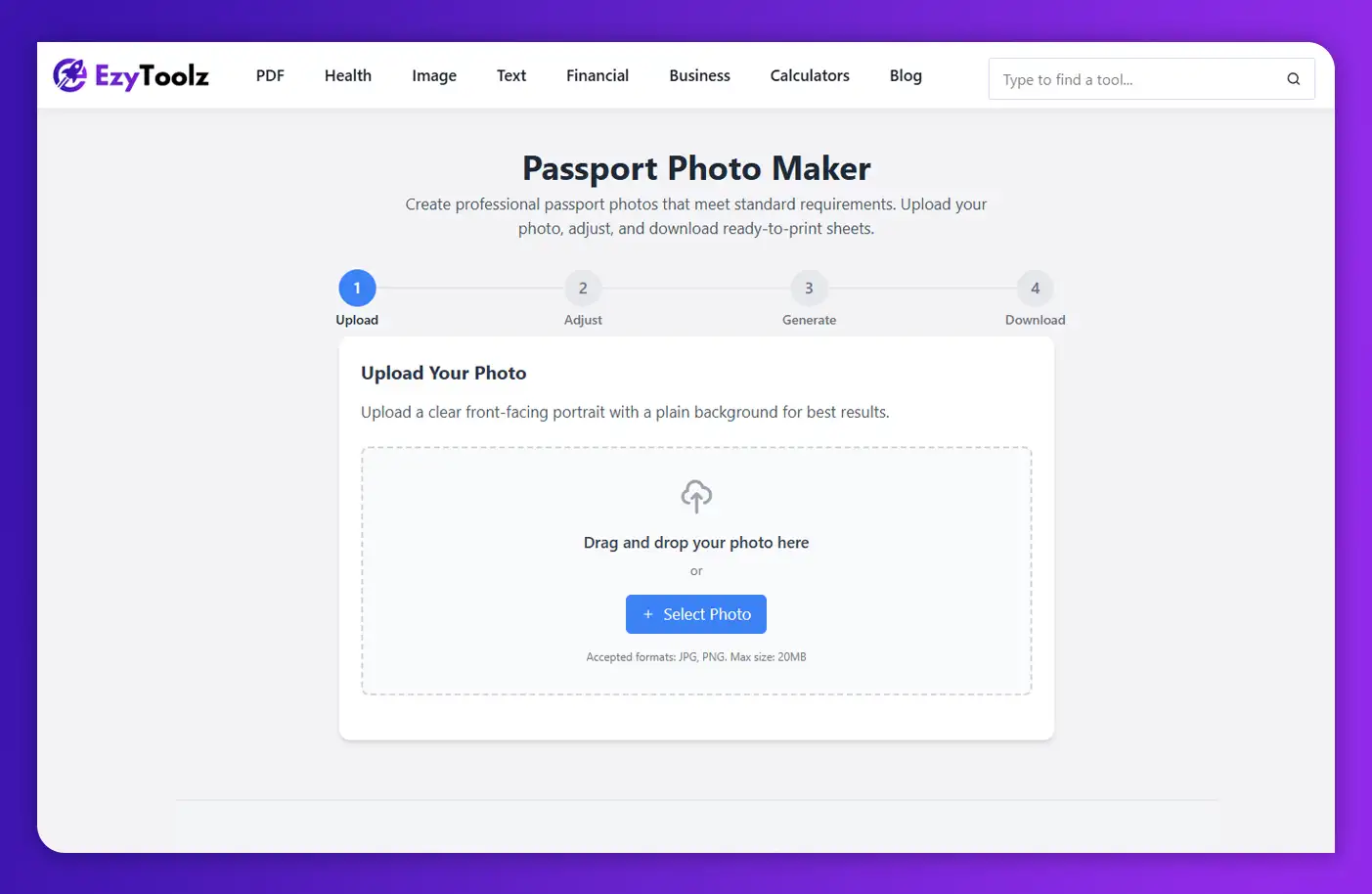
Step 1: Upload Your Photo

Starting off right is key if you want a successful passport photo experience. Your final photo’s quality depends heavily on what picture you start out with.

  • Find the Upload Area: On the tool’s main page, there is a large, clearly marked area where you can either drag and drop an image file directly or use “Select Photo” button to browse your computer or phone for image files to upload.
  • Choose the Right Picture: When it comes to selecting an ideal picture, aim for one with recent, clear front-facing portrait that captures you looking directly into the camera with neutral expressions.
  • Preview and Check: Once uploaded, the tool will provide a preview of your image. At this stage, if your photo contains clutter on its background, an external service such as remove.bg may provide assistance; for optimal results it is advised that photos with plain, light backgrounds be uploaded for processing.
  • Proceed: Once you are happy with your uploaded photo, click the “Continue to Adjust” button to move to the next step.

Step 2: Adjust and Customize Your Photo

At this stage, all the magic occurs. Simply crop the photo to official dimensions and make any necessary edits.

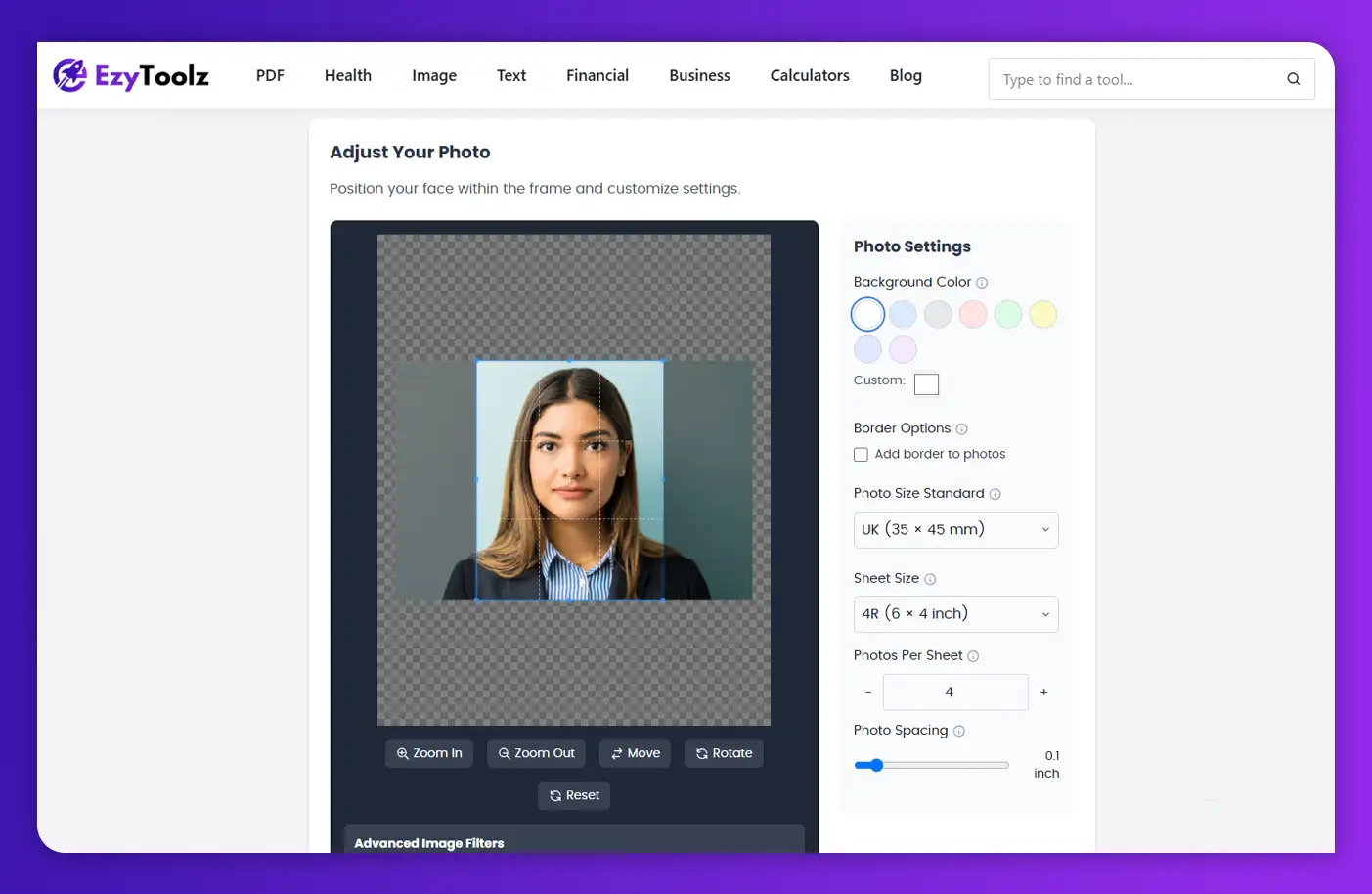
  • Select Your Country’s Standard: To start off your Photo Size Standard journey, it is important that you select an appropriate photo size from the “Photo Size Standard” drop-down menu. Here, there are options for the USA, UK and India among many more if needed. For non-standard sizes please choose Custom Size (if required).
  • Crop Your Image: Once clicked, an overlay will appear over your photo showing you exactly where to crop. Use your mouse or fingers to move and zoom the image until your head and shoulders are perfectly within the guidelines, while this tool’s pre-set aspect ratio ensures the final crop will have the appropriate dimensions.
  • Change the Background Color: Most professional photos require a white or light-colored backdrop, and in the Settings Panel of Adobe Lightroom 5 you can select from an extensive palette of common hues or use our Custom Color Picker to select just the shade needed.
  • Apply Advanced Filters (Optional): If your photo lacks contrast or brightness, try the advanced image filters. Simply adjust Brightness, Contrast, Saturation and Sharpness sliders until your perfect shot emerges – there’s even an optional Sharpness filter!
  • Add a Border (Optional): ID photos can appear more professional if surrounded by an attractive border. You can enable this option and customize its width and color according to your liking.
  • Continue: Once all adjustments have been completed, click “Generate Photos” to move forward with your work.

Step 3: Generate the Photo Sheet

Step Two of this tool’s process entails prepping your edited and cropped image for printing.

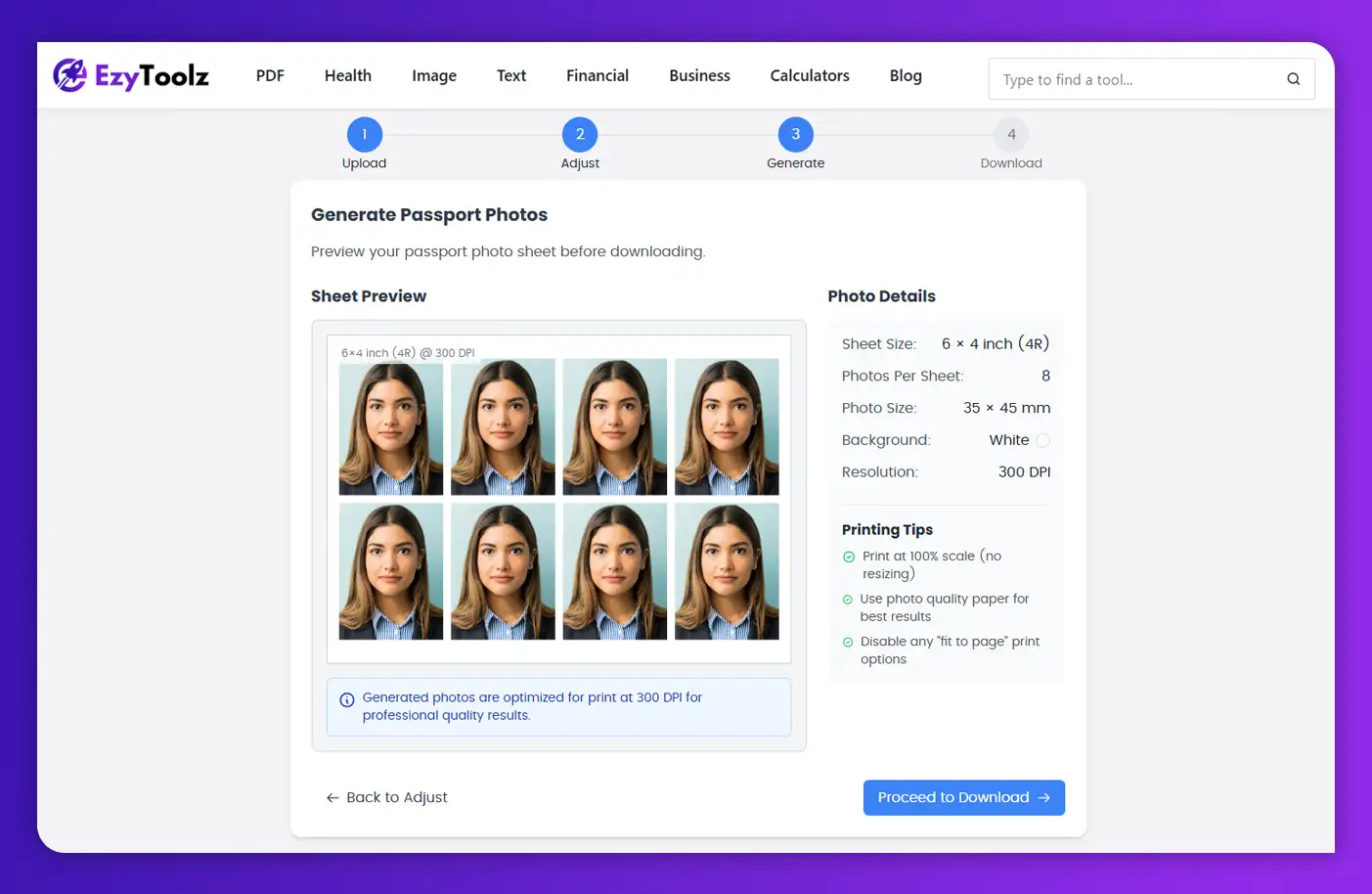
  • Choose Your Sheet Size: When printing photos, determining how many will fit per page is key – choosing from 4R (6×4 inch), A4, or Letter is ideal. This will determine how many pictures can fit onto each sheet of paper.
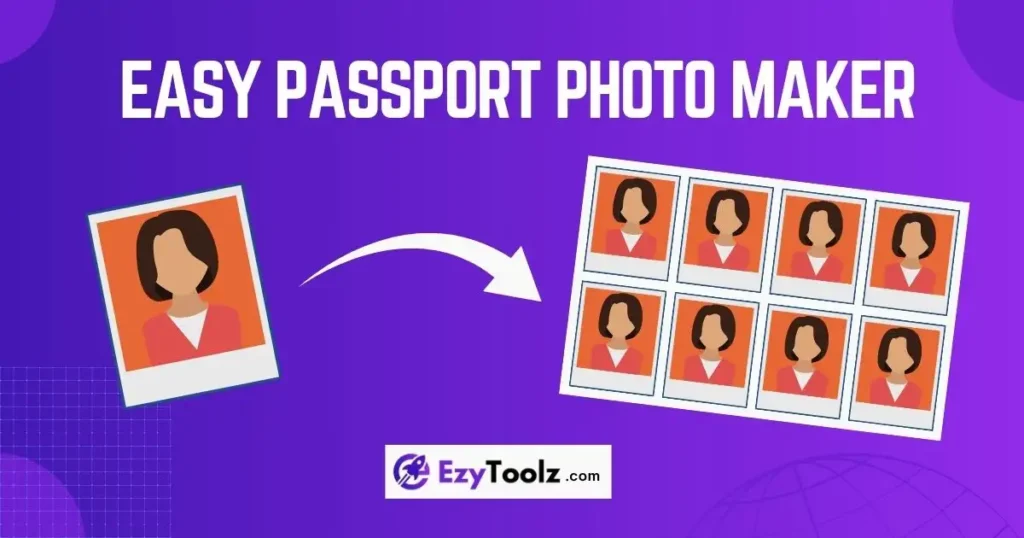
  • Set Photos Per Sheet: With this tool, you can select how many copies of your passport photo you would like arranged onto each sheet and let the tool do all of the hard work for you!
  • Preview the Sheet: Our tool generates a real-time preview of your print sheet so you can see exactly how photos will be laid out on paper – eliminating surprises! Furthermore, this preview verifies 300 DPI print resolution for optimal results.
  • Proceed to Download: If everything looks perfect, press the “Proceed to Download” button.

Step 4: Download Your Photos

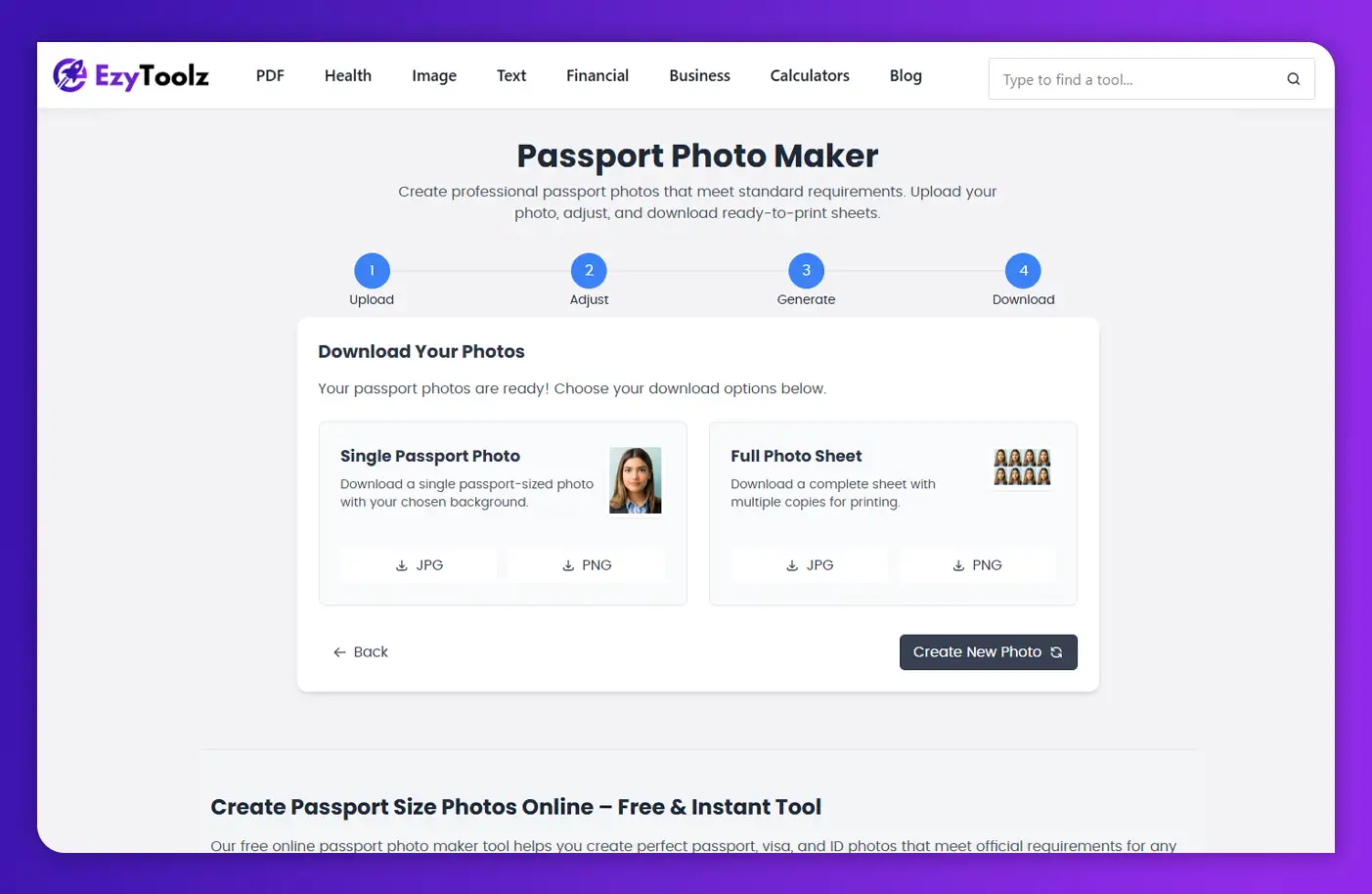
Your professional passport photos are now ready! This tool offers two easy download options.

  • Download Single Photo: With this option, you can obtain one fully cropped and edited digital copy of your passport photo for use online applications that require digital files such as JPGs or PNGs.
  • Download Full Photo Sheet: This option is the most frequently chosen; it provides a print-ready sheet containing multiple photos arranged into rows on one sheet. Download it as either JPG or PNG files onto a USB drive, take to a local print shop for printing or simply print at home directly.

Ready to create your perfect photo?

Supported Photo Sizes & Formats

Our tool is built to meet global standards, offering flexibility for any requirement.

  • Pre-set Country Standards:
    • USA: 2 x 2 inches (51 x 51 mm)
    • UK & Schengen Visa: 35 x 45 mm
    • India: 35 x 35 mm
    • Canada: 35 x 45 mm
    • Australia: 35 x 45 mm
  • Custom Sizes: If you need a unique size for a specific ID or application, you can select “Custom Size” and enter the exact width and height in millimeters (mm), centimeters (cm), or inches.
  • Print Sheet Sizes:
    • 4R (6×4 inch): The most common photo paper size.
    • A4 & Letter: Standard paper sizes for home printers.
  • Download Formats:
    • JPG: Best for high-quality photos with small file sizes, ideal for both printing and online submissions.
    • PNG: Best for digital use, especially if you need a transparent background (though not typically required for passport photos).

Tips for Best Passport Photo at Home

Detail is everything when it comes to taking passport photos that are acceptable by authorities, so follow these easy tips and achieve success on the first attempt!

  1. Plain Background is a Must: Stand against a solid white or light-grey wall. No patterns, no clutter, and no shadows. A plain white sheet works in a pinch!
  2. Say No to Shadows: Natural light is your best friend. Face a window to get soft, even lighting on your face. Avoid direct overhead lights and absolutely no camera flash—it causes glare and red-eye.
  3. Keep Your Expression Neutral: Look straight into the camera with a calm, neutral expression. A faint, natural smile might be okay, but save the big grins for other photos. Both eyes must be fully open and visible.
  4. Position Yourself Correctly: Ask a friend to take the picture from 4-5 feet away to avoid a distorted look. Make sure to frame your head and shoulders with a little bit of space around the edge
  5. What to Wear: Stick to your normal, everyday clothes. Avoid wearing uniforms or anything that looks like one. It’s also best to skip white or very light-colored shirts that might blend into the background.
  6. Clear View of Your Face: If you wear glasses, make sure there’s no glare on the lenses covering your eyes. Headwear is only permitted for religious or medical reasons, and it must not hide any part of your face.

Why Choose Our Tool Over Others?

There are various solutions available, but the Passport Photo Maker stands out as being user-friendly and efficient.

  • Easy & Directed: Ignore complex user interfaces. To ensure you always know what to do next, our tool walks you through a straightforward 4-step process.
  • Advantages, Free: Get sophisticated filters and automatically produce photo sheets that are ready for printing, two features that are frequently absent from other free tools.
  • Private & Secure: Your browser is where the entire process takes place. We never upload your private ID photo to our servers.
  • 100% Free, No Watermarks: The images you download are free of watermarks, clear, and ready for use.

Conclusion

Identity and passport photos have never been easier to create! By using our free online Passport Photo Maker and following this simple guide, you have full control of the process and are assured of receiving an excellent, high-quality photo that meets regulations.

Use the appropriate tool to empower yourself, whether you’re planning on travelling abroad, applying for new employment or need an updated ID photo. Give our Passport Photo Maker a try now to see just how easy and quick it is to create official photos for official documents!

FAQs (Frequently Asked Questions) About Passport Photo Tool

What is the best way to take a passport photo at home?

Home passport photos should be taken during daylight hours against a white or off-white wall facing a window for optimal lighting conditions, with someone else taking it from 4-5 feet away, looking directly into the camera with both eyes open for optimal results.

Can I use my phone to take a passport photo?

Yes! Modern smartphone cameras provide sufficient quality images for passport photos. Just ensure you follow the guidelines regarding lighting, background, and expression. Use only a rear-facing (not selfie) camera when taking passport pictures as this may prevent distortion caused by selfie-cams; or have someone else take them with their front-facing (selfie).

How do I print a passport photo sheet correctly?

When printing the photo sheet you downloaded from our tool, ensure your printer settings are set to “100%” or “Actual Size”. Avoid any options such as “Fit to Page” or “Scale to Fit,” as these could alter the dimensions of the photos. For optimal results use high-quality photo paper.

Is it cheaper to print my own passport photos?

Yes, our free online tool makes photo printing considerably cheaper. There is no fee associated with creating the photo sheet, while printing often costs only rupees or cents at local print shops (compared to professional studios/photo booths which often charge much higher fees).

What background color is required for a US passport photo?

For your US passport photo, you must use a plain white or off-white background. Our tool makes selecting such backgrounds easy – you just have to pick out one! – and ensures your photo complies.

Leave a Reply

Your email address will not be published. Required fields are marked *