You’ve set up your WordPress site, chosen a theme, written your first few posts — and then you notice it. The browser tab still shows the default WordPress “W” logo instead of your own icon.
It’s a small thing, but it matters. A favicon is how people recognize your site at a glance when they have 10 tabs open. Without one, your site just looks unfinished.
The good news: adding a favicon to WordPress takes about two minutes. WordPress even has a built-in option for it — most people just don’t know where to look.
Here’s exactly how to do it, three different ways.
Before You Start: Create Your Favicon First
You need a square image — minimum 512×512 pixels, saved as PNG or JPG. That’s the size WordPress expects. It automatically generates all the smaller versions (32×32 for browser tabs, 180×180 for iPhone home screens, etc.) from that single file.
If you don’t have one yet, the quickest way is to use a free favicon generator — upload your logo or any square image and download the files in all required sizes, including the HTML code to add them manually if needed.
A few things to keep in mind when choosing your image:
- Simple designs work best. At 16×16 pixels, a detailed logo becomes unreadable. A single letter, a bold symbol, or a simplified version of your logo works much better.
- Use a transparent background if your icon is dark. In dark mode, a dark icon on a transparent background disappears completely.
- Square images only. If your logo is wide (like a horizontal wordmark), you’ll need a cropped square version — don’t just squash the original.
Method 1: WordPress Customizer (Classic Themes)
This is the easiest method and works with most standard WordPress themes.
Steps:
- Log into your WordPress dashboard
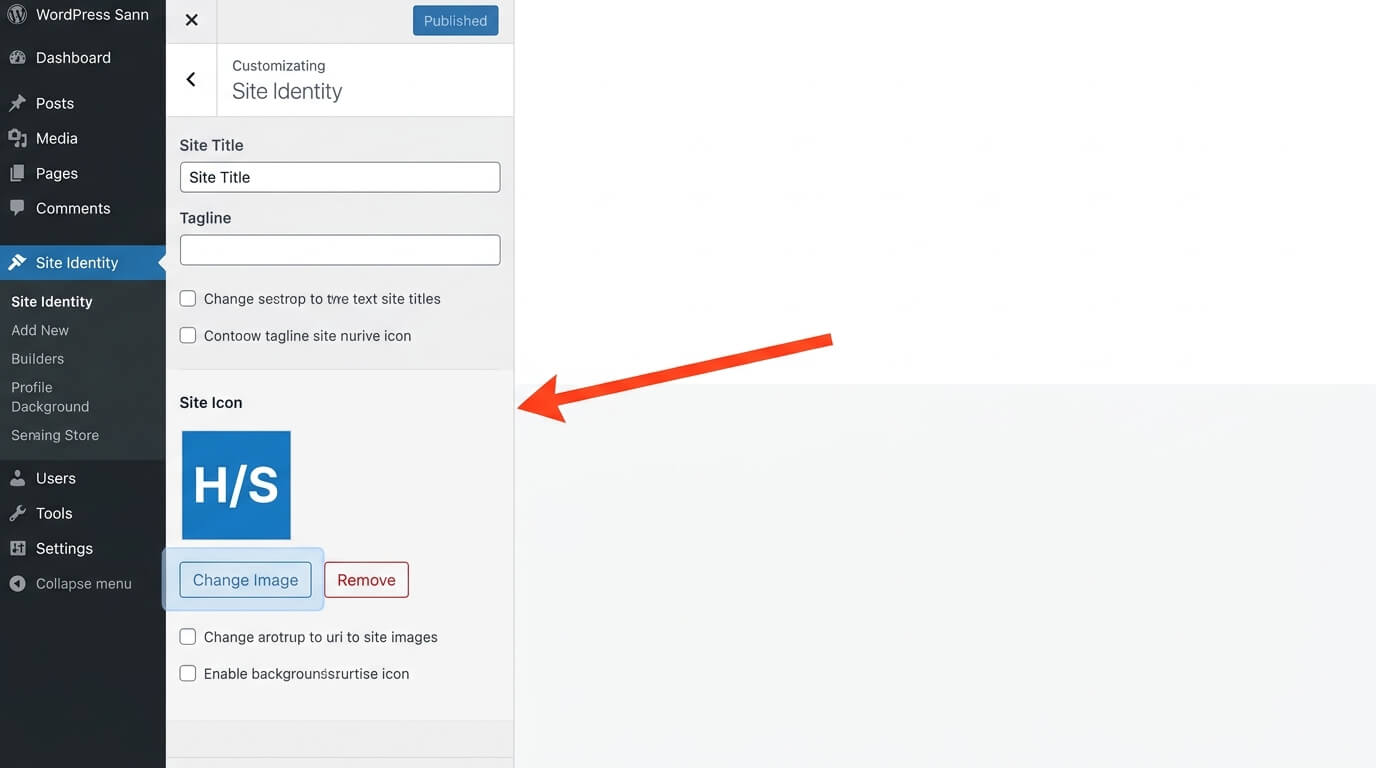
- Go to Appearance → Customize
- Click Site Identity in the left panel
- Scroll down to Site Icon
- Click Select Image
- Upload your 512×512 PNG and click Select
- If WordPress asks you to crop — if your image is already square, click Skip Cropping
- Click Publish at the top
That’s it. Open a new tab and visit your site — your favicon should appear in the browser tab within a few seconds.
Method 2: Site Editor (Block Themes)
If you’re using a newer block-based WordPress theme (like Twenty Twenty-Four or Twenty Twenty-Five), the Customizer may not be available. Block themes use the Site Editor instead.
Steps:
- Go to Appearance → Editor
- Click the Styles icon — the half-filled circle in the top-right corner
- Click the pencil (Edit) icon to open style settings
- Look for Site Identity — it may also be under General or Header depending on your theme
- Click Select Site Icon and upload your image
- Click Save
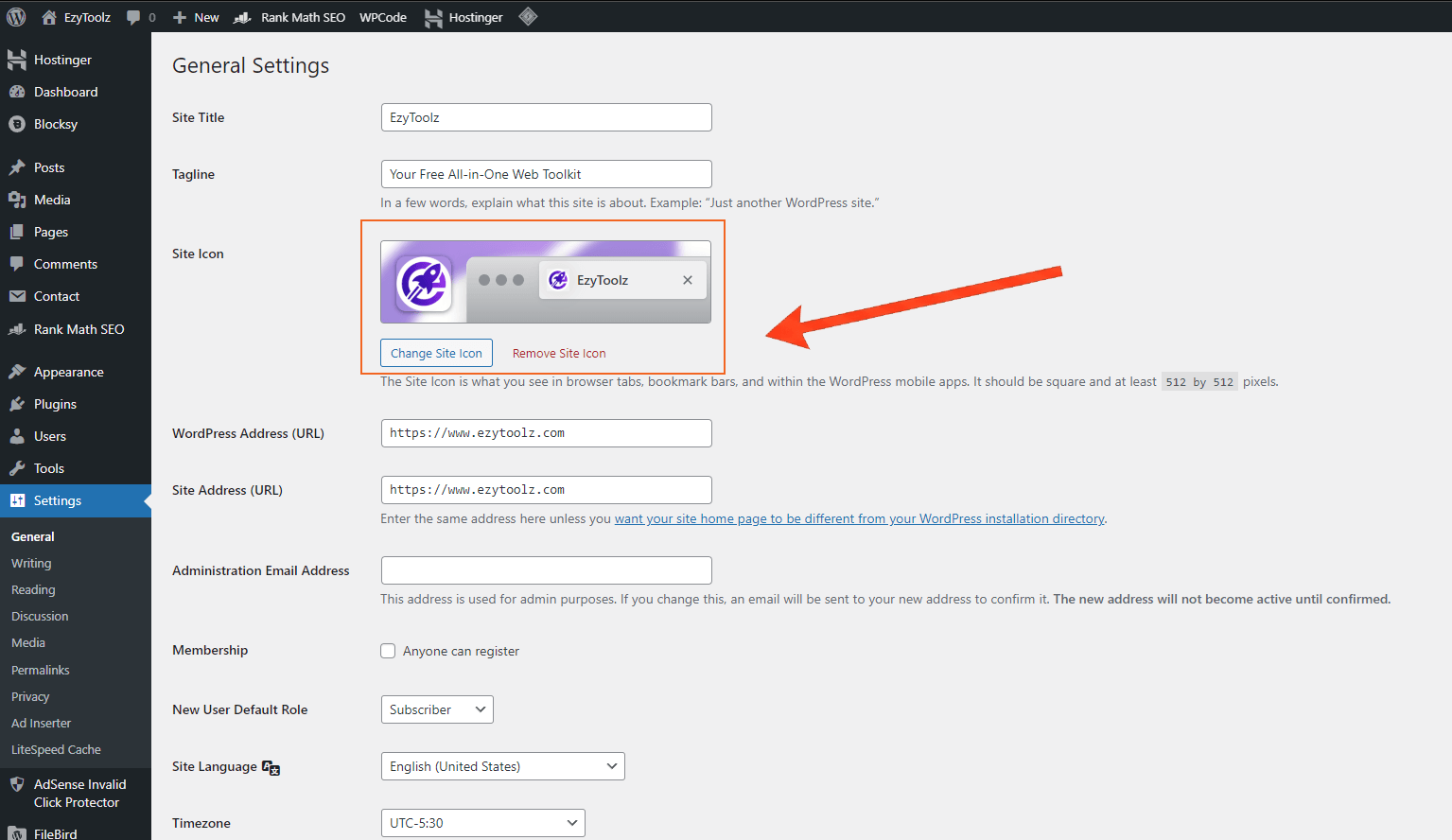
If you can’t find “Site Identity” in the Editor, try this alternative path: Settings → General — scroll down until you see the Site Icon section.
Method 3: Manual HTML Code (No Plugin Needed)
If you want full control over exactly which favicon files load — including Apple Touch Icons, Android icons, and the standard .ico file — you can add the code manually. This is what most developers prefer.
Step 1: Generate your favicon files using a free favicon generator. Download the ZIP — it contains all the size variants and an HTML code snippet.
Step 2: Upload the favicon files to your server. The easiest way is through Media Library → Add New in your WordPress dashboard, or via FTP to your site’s root directory (the folder that contains wp-admin and wp-content).
Step 3: Add the HTML code to your theme’s <head> section. The safest way to do this without touching theme files directly is to use a header/footer plugin like WPCode (free) or your theme’s custom code section if it has one.
The HTML code from the favicon generator looks like this:
html
<link rel="icon" type="image/x-icon" href="/favicon.ico">
<link rel="icon" type="image/png" sizes="32x32" href="/favicon-32x32.png">
<link rel="icon" type="image/png" sizes="16x16" href="/favicon-16x16.png">
<link rel="apple-touch-icon" sizes="180x180" href="/apple-touch-icon.png">
Paste this inside the <head> section of your site and you’re done.
Favicon Not Showing? Here’s Why
After adding your favicon, you reload the page and still see the old icon. Don’t panic — this is almost always a caching issue.
Fix 1: Hard refresh the browser — press Ctrl + F5 on Windows or Cmd + Shift + R on Mac.
Fix 2: Clear your browser cache from Settings.
Fix 3: If you use a caching plugin (WP Super Cache, W3 Total Cache, WP Rocket), clear its cache from the plugin’s dashboard.
Fix 4: If you use a CDN (Cloudflare, BunnyCDN), purge the cache from there too.
Favicons are cached aggressively by browsers. Even after clearing cache, it may take a few minutes to update in all browsers.
Which Method Should You Use?
| Situation | Best Method |
|---|---|
| Classic theme (most sites) | Method 1 — Customizer |
| Block theme (Twenty Twenty-Four etc.) | Method 2 — Site Editor |
| Want full control over all icon sizes | Method 3 — Manual HTML |
| Complete beginner | Method 1 — fastest and safest |
For 90% of WordPress sites, Method 1 is all you need. WordPress handles the resizing automatically and the process takes about two minutes.
Frequently Asked Questions
What Size Should a WordPress Favicon Be?
WordPress requires a minimum of 512×512 pixels. It uses this single file to generate all the smaller sizes it needs — 32×32 for browser tabs, 180×180 for iOS home screens, 192×192 for Android. You don’t need to create separate sizes manually when using Methods 1 or 2.
If you’re using Method 3 (manual), a favicon generator tool creates all the required sizes for you from your original image.
Does a Favicon Affect SEO?
Not directly — Google doesn’t use your favicon as a ranking signal. But it does appear next to your site name in Google search results on mobile, and a recognizable favicon can improve click-through rates. Beyond that, browsers automatically request a favicon.ico file from every site they visit. Without one, you get unnecessary 404 errors in your server logs. Setting a proper favicon clears those up.
That’s the complete guide. Haven’t created your favicon yet? Use our free favicon generator — upload your logo and download all sizes in one click.