
Introduction
We have all been there. You have a PDF document-a business report, a university assignment, or an eBook-but it contains a few blank pages or irrelevant data that ruins the flow. You want to clean it up, but you don’t have the expensive Adobe Acrobat Pro software installed. Searching for “how to delete pages in PDF” can often lead to complicated tutorials.
But what if we told you that you can remove pages from PDF online in just a few seconds, without downloading any software? Whether you are using a laptop, Mac, or mobile phone, our Remove PDF Pages tool is designed to make your life easier.
In this article, we will guide you through the simple steps to edit your PDF documents and explain why using an online PDF page remover is the smartest choice.
Why Do You Need to Remove Pages from a PDF?
Before we jump into the “how,” let’s look at the “why.” Managing digital documents efficiently is crucial in today’s fast-paced world. Here are a few common reasons why users search for a PDF page remover:
- Removing Blank Pages: Scanned documents often end up with unnecessary blank sheets in between. Deleting them makes the file cleaner.
- Deleting Sensitive Information: Sometimes, a shared document might contain a page with personal data or confidential notes that shouldn’t be shared.
- Extracting Specific Content: You might only need Chapter 1 from a 100-page eBook. Instead of saving the whole file, you can simply delete pages from PDF and keep only what you need.
- Reducing File Size: Extra pages mean extra megabytes. By deleting unwanted pages, you can significantly reduce the PDF file size, making it easier to email.
The Easiest Way to Remove Pages from PDF Online
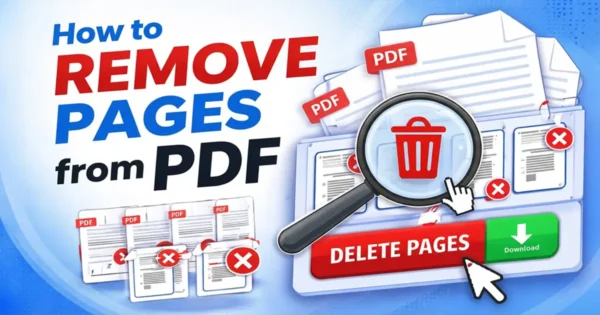
Gone are the days when you needed technical skills to edit a PDF. Our tool is built for everyone-from students to professionals. Here is a step-by-step guide on how to use our Remove PDF Pages tool:

Step 1: Upload Your PDF File
Navigate to the tool interface above. You will see a “Select PDF File” button. Click on it to browse your computer or phone storage. Alternatively, you can simply drag and drop your PDF file into the upload area. The tool supports all PDF formats and sizes.

Step 2: Select the Pages to Delete
Once the file is uploaded, the tool will generate a visual preview of all the pages in your document. You can scroll through the pages and see exactly what you are deleting.
- Click on the pages you want to remove.
- Selected pages will be highlighted or marked with a delete icon.
- If you make a mistake, you can simply click again to deselect them.
Tip: You can select multiple pages at once to delete a whole range of content quickly.
Step 3: Apply Changes and Download
After selecting the unwanted pages, click on the “Remove Pages” or “Save PDF” button. The server will process your request instantly. Once the processing is done, a “Download” button will appear. Click it to save your newly edited PDF to your device.
That’s it! You have successfully managed to remove pages from PDF online without spending a penny.

Key Features of Our PDF Page Remover
When you choose an online tool, security and speed are the top priorities. Here is why thousands of users trust our tool:
1. 100% Free to Use
Many tools claim to be free but ask for payment when you try to download the final file. Our Remove PDF Pages tool is completely free. There are no hidden charges, no sign-ups required, and no “trial versions.”
2. Works on Any Device
Whether you are on a Windows PC, a MacBook, an Android phone, or an iPhone, our web-based tool works perfectly on all platforms. Since it is browser-based, you don’t need to find a specific “app” to delete pages on mobile.
3. No Software Installation
Downloading unknown software can be risky. Viruses and malware often hide in “free PDF editors.” By using an online solution, you keep your computer safe and your hard drive clean.
4. Secure and Private
We understand that your documents are private. When you upload a file to remove pages, it is encrypted. Most importantly, the files are automatically deleted from our servers shortly after processing. Your data is not stored or shared.

5. High Quality Output
Some compressors ruin the image quality or text clarity when editing PDFs. Our tool ensures that the formatting, fonts, and resolution of your remaining pages remain exactly the same as the original.
Tips for Editing PDFs Efficiently
To get the best results when you remove pages from PDF online, keep these tips in mind:
- Check Page Numbers: PDFs sometimes have page numbers that don’t match the file’s actual page count (e.g., the cover page might be page 1, but the content starts on page 3). Always use the visual preview to ensure you are deleting the correct page.
- Backup Your File: While our tool is reliable, it is always a good habit to save a copy of your original PDF elsewhere before making edits, just in case you need to refer back to the deleted information later.
- Organizing Pages: Apart from deleting, if you need to rearrange pages, some advanced PDF organizers allow you to rotate or move pages. Keep an eye out for these features to fully optimize your document.
Conclusion
Editing a PDF doesn’t have to be a headache. You don’t need to be a tech wizard or buy expensive software to tidy up your documents. With our Remove PDF Pages tool, you can quickly delete blank pages, remove confidential sheets, or extract specific content with just a few clicks.
It is fast, free, and works seamlessly on any device. The next time you need to organize a document, skip the hassle and use our online PDF page remover. Try it today and experience the easiest way to manage your PDF files!
Frequently Asked Questions (FAQs)
1. Can I remove pages from a PDF without Adobe Acrobat?
Yes, absolutely. You do not need Adobe Acrobat or any other paid software. You can use our free online tool to delete pages directly from your browser.
2. Is it safe to remove pages from PDF online?
Yes, it is completely safe! EzyToolz is a browser-based tool, which means your PDF processing happens directly on your device and not on our servers. Your files are never uploaded to the cloud or viewed by anyone, ensuring 100% privacy.
3. How to Remove pages from PDF Online on my phone?
It is very simple! Just open EzyToolz.com on your mobile browser (Chrome or Safari) and search for the “Remove PDF Pages” tool. Upload your PDF from your phone’s storage, select the specific pages you want to delete, and click on the remove button to download your edited file instantly.
4. Does deleting pages reduce PDF file size?
Yes. When you remove unnecessary pages, especially those with heavy images or graphics, the overall file size of the PDF will decrease, making it easier to share via email or WhatsApp.
5. How many pages can I delete at once?
There is no limit. You can delete a single page or multiple pages at the same time. Just click on all the pages you wish to remove during the selection step.