EzyToolz has a set of free online image converter tools that handle different image tasks — extracting text from a photo, converting images to PDF, creating passport size photos, compressing images, and turning text into graphics. All five work in the browser, need no account, and process files locally without uploading to any server. This guide covers what each tool does, who it is for, and how to use it.
5 Free Online Image Converter Tools — Quick Overview
| # | Tool | What it does | Best for |
| 1 | Text to Image | Turn text and headings into a downloadable image | Social media, banners |
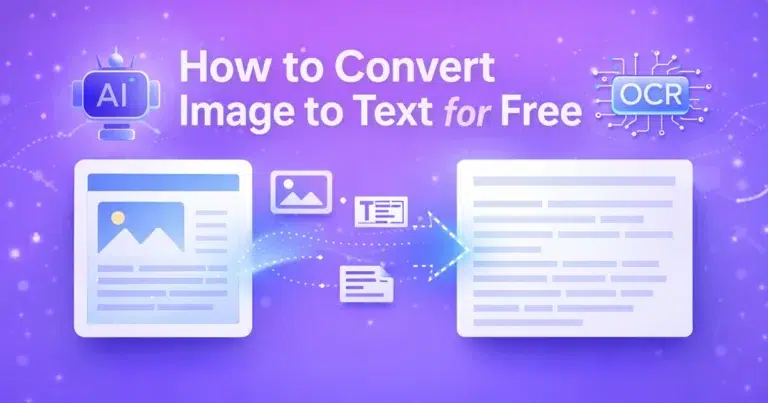
| 2 | Image to Text OCR | Extract text from photos and scanned documents | Students, professionals |
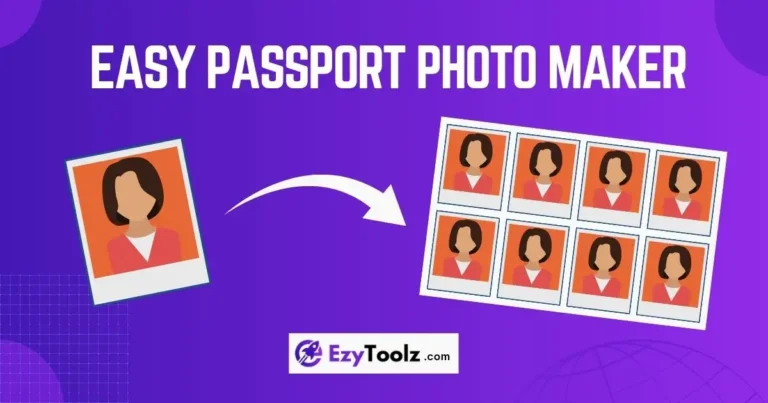
| 3 | Passport Photo Maker | Crop to official ID photo dimensions, change background | Passports, exam forms |
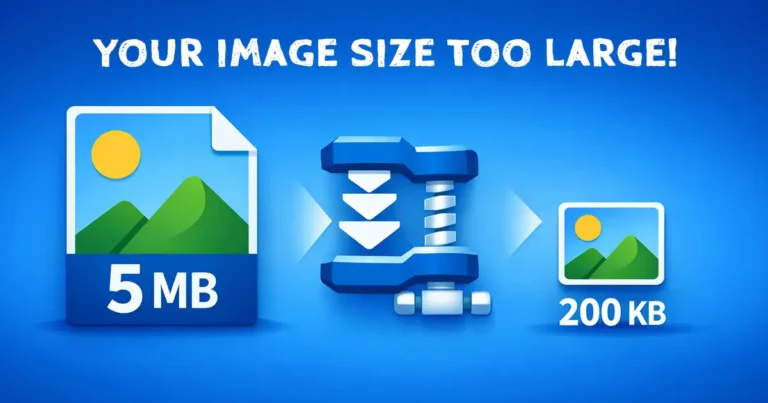
| 4 | Image Compressor | Reduce JPG, PNG, WebP file size without quality loss | Web, email, portals |
| 5 | Image to PDF | Convert multiple images into a single PDF file | Assignments, reports |
1. Text to Image Converter
Turn text into a downloadable graphic — PNG, JPG, or WebP

What it does: Type any text, choose a font, set the background colour or gradient, pick the image size, and download a finished graphic. Outputs in PNG, JPG, or WebP at high resolution.
Who uses it
- Social media managers — create quote cards, announcement graphics, and post headers without design software.
- Bloggers — generate custom featured image text overlays in the right dimensions.
- Students and presenters — turn a key point or slide title into a clean visual.
How to use
- Enter your text in the input box. Add a heading above it if needed.
- Customise — choose font, size, colour, alignment, and background (solid or gradient).
- Set image size — for example 1920×1080 for a banner or 1080×1080 for Instagram.
- Choose format — PNG for transparent-friendly quality, JPG or WebP for smaller file size.
- Click ‘Generate Image’ then download.
| Pro tip — drag to reposition text After generating, click and drag the text block in the preview to position it exactly where you want. Resize the text box using the corner handle. This is faster than adjusting margin settings manually. |
2. Image to Text OCR Converter
Extract text from photos, scans, and screenshots instantly
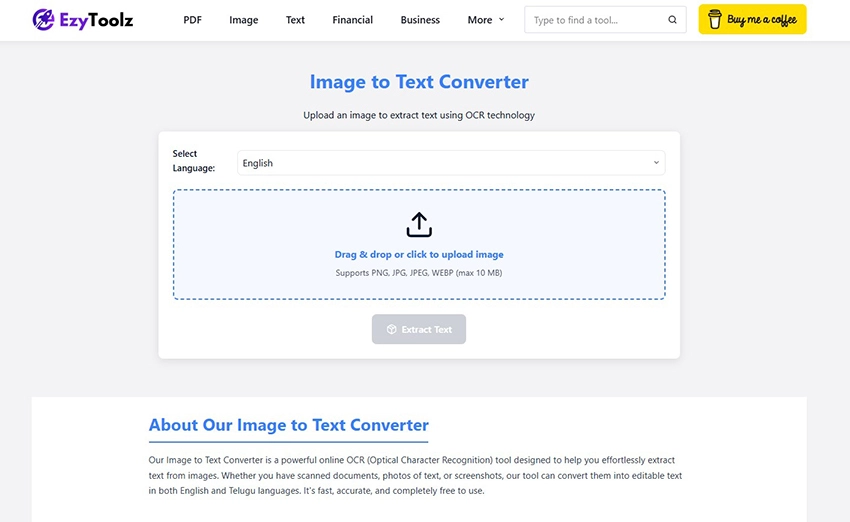
What it does: Uses Optical Character Recognition (OCR) to read text from any image — photos, scanned documents, screenshots, receipts. Supports English, Hindi, and Telugu. Output can be copied or downloaded as TXT or PDF.
Who uses it
- Students — photograph a textbook page and get digital, editable notes immediately.
- Professionals — convert scanned invoices, contracts, or reports into text without retyping.
- Telugu readers — extract text from Telugu news article screenshots or social media posts.
- Anyone — copy text from a photo that cannot be selected normally.
How to use
- Select language — English, Hindi, or Telugu.
- Upload image — PNG, JPG, or WebP. Drag and drop or click to browse.
- Click ‘Extract Text’ — OCR runs and extracted text appears in the output box.
- Copy or download — copy to clipboard with one click or save as TXT or PDF.
| Low accuracy? Use ‘Improve Image Clarity’ If the extracted text has errors — common with blurry or low-contrast images — click the ‘Improve Image Clarity’ button. The tool applies filters to sharpen the image and reruns OCR. This usually fixes most accuracy issues without needing to use a separate image editor. |
3. Passport Photo Maker
Crop any photo to official ID dimensions, change background, download print sheet
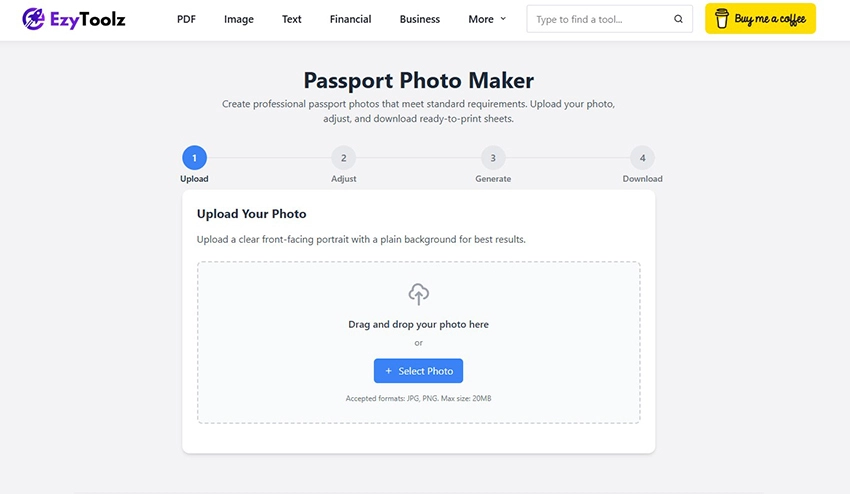
What it does: Converts a regular photo into a correctly sized, print-ready passport photo. Pre-loaded with official size standards for Indian Passport, Aadhar, PAN, NEET/JEE exam forms, US Passport, UK Passport, Schengen Visa, and more. Includes background colour change, brightness and contrast adjustments, and sheet layout for printing.
Who uses it
- Students applying for NEET, JEE, SSC, or UPSC — forms require specific photo sizes and white backgrounds.
- Anyone renewing or applying for an Indian passport, Aadhar update, or driving licence.
- Anyone applying for a US, UK, or Schengen visa — correct dimensions preset in the tool.
How to use
- Upload a front-facing photo with a plain background. If background is cluttered, use the EzyToolz Background Remover first.
- Select document standard from the dropdown — Indian Passport, NEET Form, US Passport, etc.
- Crop the image — move and zoom until face and shoulders sit correctly in the guide.
- Set background to white (or as required by your document).
- Choose sheet size (A4 is standard in India) and number of photos per sheet.
- Download — single photo for digital submissions or full print sheet for physical applications.
4. Image Compressor
Reduce JPG, PNG, and WebP file size — multiple compression modes, side-by-side comparison
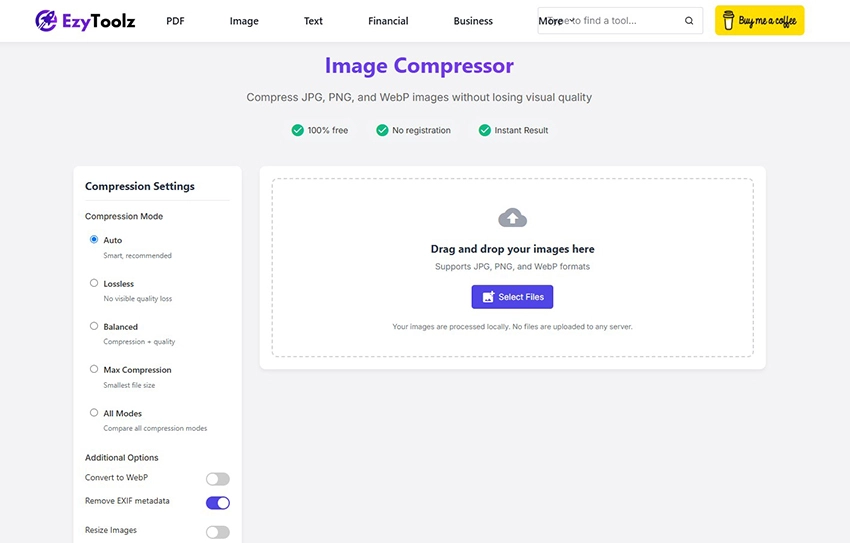
What it does: Compresses JPG, PNG, and WebP images directly in the browser. Three compression modes — Lossless, Balanced, and Max. Side-by-side comparison view shows the original vs compressed quality and file size savings before downloading. Also supports batch compression and optional WebP conversion.
Who uses it
- Students — government exam portals often require photos under 50KB or 200KB. Compress to meet the limit without distorting the photo.
- Web developers and bloggers — smaller images load faster and help SEO.
- Anyone sending photos by email or WhatsApp — reduce file size without visible quality loss.
How to use
- Upload images — drag and drop one or multiple files. JPG, PNG, or WebP.
- Choose compression mode — Auto for general use, Lossless to keep full quality, Max for smallest file size.
- Compare — use the slider to compare original and compressed versions side by side.
- Download — individual files or all as a ZIP.
| Tip — use ‘All Modes’ to compare all three options Before uploading, select ‘All Modes’ in the settings. The tool will run Lossless, Balanced, and Max compression on the same image and show separate result cards for each. Pick whichever gives the best balance of file size and quality for your use case. |
5. Image to PDF Converter
Convert JPG, PNG, GIF, WebP images into a single PDF — reorder, resize, set margins
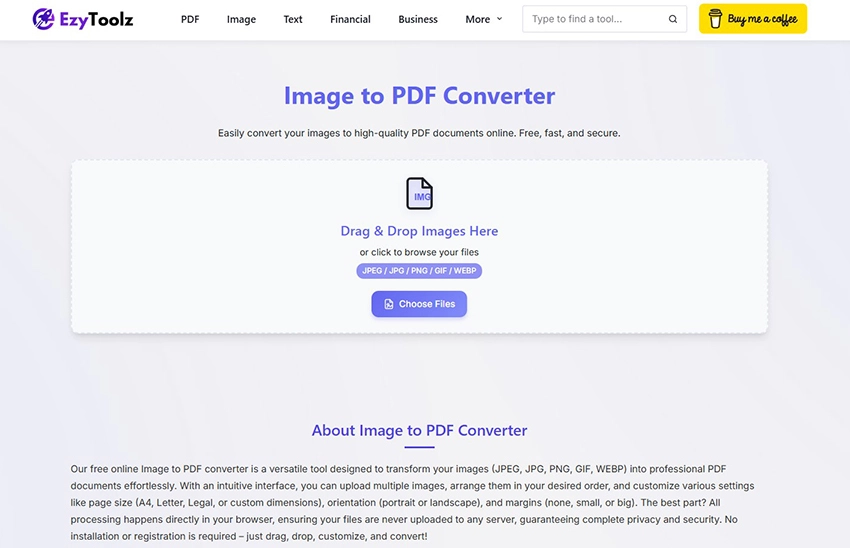
What it does: Converts one or multiple images into a PDF file. Supports JPG, PNG, GIF, and WebP. Set page size (A4, Letter), orientation, and margins. Drag to reorder images before converting. Merge all into one PDF or keep separate. All processing happens in the browser — no server upload.
Who uses it
- Students — combine photos of handwritten assignment pages into a single PDF for college portal submission.
- Professionals — convert scanned receipts, contracts, or ID documents into a shareable PDF.
- Anyone — merge multiple photos into one clean document for easy sharing or archiving.
How to use
- Upload images — drag and drop all images you want to include.
- Reorder — drag thumbnails in the preview to arrange pages in the correct order.
- Set layout — choose page size, orientation, and margins in the options panel.
- Rotate if needed — click the rotate icon on any thumbnail to fix orientation.
Click ‘Convert to PDF’ — download the finished file immediately.
Frequently Asked Questions
Are all these image converter tools completely free?
Yes — all five tools are free to use. No account, no subscription, no daily limit, no watermark on downloaded files.
Do these tools upload my images to a server?
No. All five tools process files directly in your browser. Images never leave your device. This makes them safe to use for sensitive documents like ID photos, contracts, and personal photos.
Which tool should I use to reduce photo size for a government exam form?
Use the Image Compressor. Most exam portals (NEET, JEE, SSC, UPSC) require photos under a specific file size — usually 50KB to 200KB. Upload your photo, select the compression mode, and download the compressed version. If you also need to resize to specific dimensions, use the Passport Photo Maker.
Can I extract Telugu text from an image?
Yes. The Image to Text OCR tool supports English, Hindi, and Telugu. Select Telugu as the language before uploading the image.
Which tool should I use to combine multiple photos into one file?
Use the Image to PDF converter. Upload all your images, drag to arrange them in order, and convert to a single PDF. This is useful for submitting handwritten assignments, scanned documents, or multiple photos as one file.
Five Tools, One Place — No Account Needed
These five free online image converter tools cover the most common image tasks — creating graphics from text, extracting text from images, making passport photos, compressing files, and converting images to PDF. All available on EzyToolz, all free, all browser-based.
Open any tool directly from the links above — no signup, no download, no waiting.