
WhatsApp has become the No.1 communication tool in today’s digital world, playing an essential role in our daily lives. For years, people who wanted to use two WhatsApp accounts in one app on the same phone had to rely on tricks – installing WhatsApp Business alongside the normal app, using dual app features, or third-party cloning apps. These workarounds were messy and inconvenient.
Now, that’s history. With WhatsApp’s latest update, you can officially run two WhatsApp accounts in one app. This is a huge relief for those who want to keep personal and work life separate without carrying two phones.
In this guide, we’ll explain everything you need to know about this new feature, how to set it up, and why it might be a game-changer for you.
Why Did Users Want This Feature?
Many people juggle two SIM cards – one for personal use and another for work or business. Until now, managing both numbers on WhatsApp required:
- Installing WhatsApp and WhatsApp Business separately
- Using your phone’s dual-app/parallel-app feature
- Or buying another phone
This was inconvenient, cluttered your device, and sometimes risky (especially third-party app clones). With the official multi-account support, all those hacks are unnecessary.
What You’ll Need Before You Start
The process is simple, but you’ll need two things to get started:
- An Updated WhatsApp Application: Ensure you are running the latest version of WhatsApp from the Google Play Store or Apple App Store. If you don’t see the “Add Account” option, the first step is always to check for updates.
- A Second, Active Phone Number: You need a different phone number for your second account. This number must be able to receive an SMS or a phone call for verification. The SIM card for this second number does not need to be in the same phone; it can be in another phone temporarily, just to receive the one-time password (OTP).
How to Set Up Two WhatsApp Accounts in One App
Setting it up is surprisingly simple. Just follow these steps:
- Update WhatsApp
- Make sure you’re running the latest version from the Play Store (Android) or App Store (iOS).
- Open WhatsApp Settings
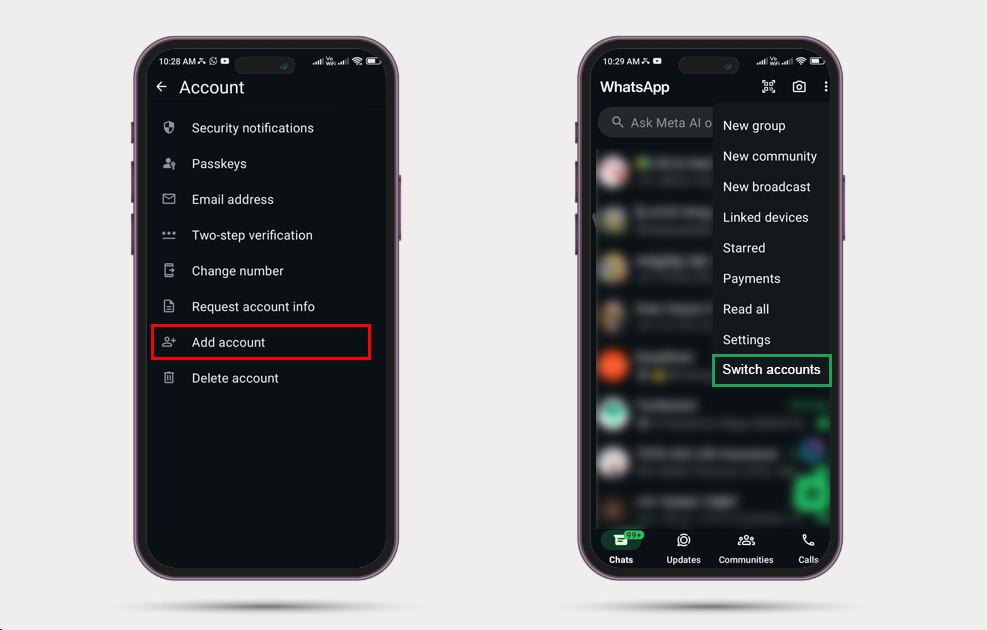
- Tap the three dots (⋮) at the top right corner (Android) or use the Settings tab on iPhone.
- Go to Accounts
- In the menu, you’ll now see an Accounts option.
- Add Account
- Tap on Add Account.
- Enter your second phone number.
- Verify it with the OTP (just like setting up a new WhatsApp).
- Add your name and optional profile picture.
- Switch Between Accounts
- Once both accounts are active, tap the three dots (⋮) again and choose Switch Accounts.
- From here, you can instantly jump between your two WhatsApp profiles.
That’s it! No parallel apps, no workarounds — just official, seamless support.
Troubleshooting: What If “Add Account” Option Doesn’t Appear?
Some users don’t immediately see the new “Add Account” option in WhatsApp settings. If that’s the case, try these fixes:
- Update WhatsApp → Make sure you’re running the latest version from the Play Store (Android) or App Store (iOS).
- Gradual Rollout → WhatsApp often releases new features in phases. If you don’t see the option yet, it may reach your device in the coming weeks.
- Clear Cache or Reinstall → On Android, clearing the app cache can sometimes fix feature visibility issues. As a last resort, uninstall and reinstall WhatsApp.
- Check Dual SIM Support → You still need a second, active phone number to verify the new account. Make sure your SIM or eSIM is active.
Benefits of Using Two WhatsApp Accounts in One App
- Separation of personal and work life → Keep family chats and office groups apart.
- No need for WhatsApp Business unless you really want business features → Now you can just run two normal WhatsApps.
- Less clutter → Only one app, one icon, one update to manage.
- Safer → You no longer need third-party apps that could risk your privacy.
Things to Keep in Mind
- You’ll still need a second SIM card or a secondary phone number to activate the second account.
- Notifications for both accounts may show up together — check your settings to manage them.
- Backup and restore options apply separately to each account, so set up Google Drive/iCloud backups for both.
Real-Life Uses of Dual WhatsApp
- Work vs Personal → Keep office groups from mixing with family chats.
- Business Owners → Manage one number for orders/customers and another for suppliers.
- Travelers → Use your home country number and a local SIM at the same time.
- Students → Separate your personal circle from academic or project groups.
WhatsApp Business vs Two Accounts in One App
Before this update, many people used WhatsApp Business alongside the normal app to manage two accounts. So what’s the difference now?
- Two Accounts in One App → Designed for convenience. It only gives you the ability to run two personal accounts in the same WhatsApp app.
- WhatsApp Business → Built for entrepreneurs and small businesses. It includes extra features like product catalogs, auto-replies, and business profiles.
👉 Which one should you use?
- If you just need to separate work and personal chats, the new two-accounts feature is all you need.
- If you’re a business owner who needs advanced features to talk to customers, WhatsApp Business is still the better choice.
Is This the End of WhatsApp Business?
Not really. WhatsApp Business still has advanced features like auto-replies, product catalogs, and business profiles. But for users who only wanted it to run two accounts, the new feature makes WhatsApp Business unnecessary.
Final Thoughts
WhatsApp has finally delivered one of its most requested features: dual account support in one app. It’s clean, safe, and easy to use. Whether you’re balancing personal and work life or managing two numbers while traveling, this update is a huge time-saver.
So go ahead – update your WhatsApp, add your second account, and enjoy the freedom of switching between two worlds without carrying an extra phone.
Frequently Asked Questions (FAQ)
Q1: Do I need a dual-SIM phone for this feature to work?
No, you don’t. You only need a second phone number that can receive an SMS or call for the initial verification. The SIM can be in any phone, anywhere in the world, during the setup process.
Q2: Will my chats and contacts from both accounts get mixed up?
No. WhatsApp keeps the chat history, contacts, media, and settings for each account completely separate.
Q3: Is this different from WhatsApp Business?
Yes. This feature allows you to add another standard WhatsApp account. WhatsApp Business is a separate application with specific tools for businesses (like catalogs, automated replies, etc.). You can still use a Business account as your second account if you wish.
Q4: I don’t see the “Add Account” option. What should I do?
This feature is rolling out globally. If you don’t see it yet, make sure your WhatsApp application is fully updated to the latest version from your app store.