
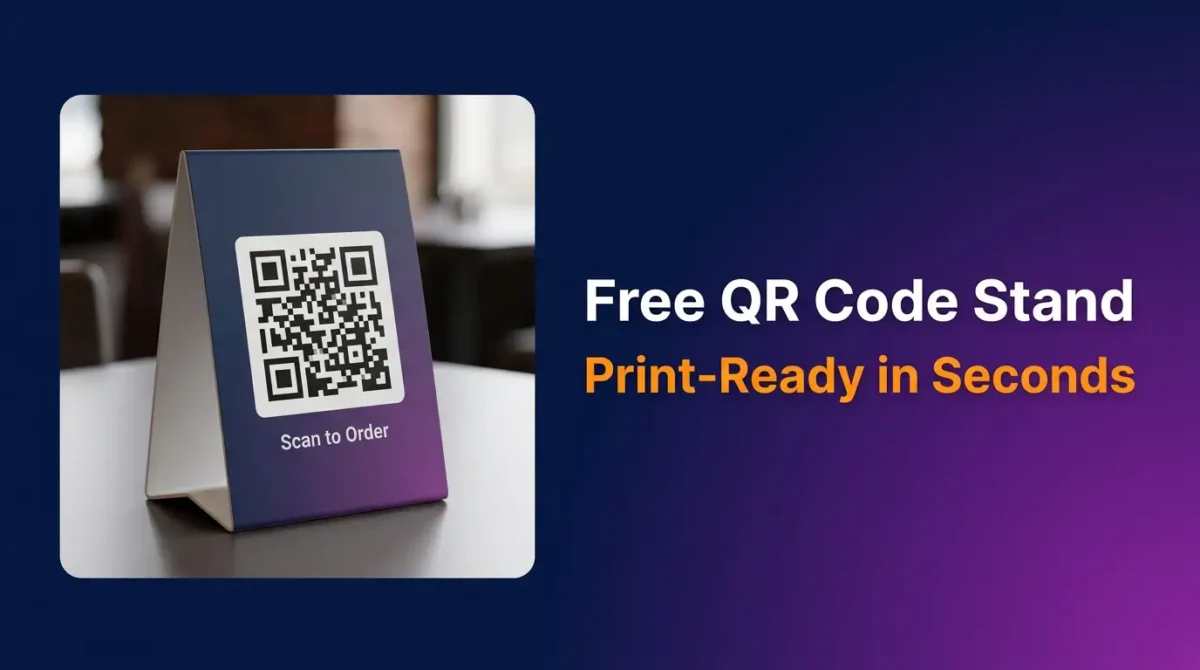

Walk into almost any restaurant or cafe these days and there’s a good chance you’ll find a small card on the table with a QR code on it. Scan it and the menu opens on your phone. Some shops use them at checkout. Event organisers put them on welcome desks. Hotels place them near the TV with a link to room service.
The idea is simple — but creating one that actually looks presentable is where most people get stuck. Either they don’t have design software, don’t know how to format something for print, or spend twenty minutes in Canva only to realise the proportions are wrong when it comes out of the printer.
This guide shows you how to make a proper, print-ready QR code stand in under two minutes using EzyToolz — completely free.
What Is a QR Code Stand?
A QR code stand — sometimes called a table tent, QR holder, or display card — is a small folded or flat card that holds a QR code in an upright, visible position. It sits on a surface (table, counter, desk, reception) so people can see and scan it without picking anything up.
The stand combines two things: the QR code itself, which links to wherever you want, and the physical card design that holds it in place and makes it look intentional rather than just a printed piece of paper taped to a wall.
Who Actually Uses These?
The short answer: more people than you’d expect.
Restaurants and cafes use them for digital menus, so customers can browse from their phones without handling a physical menu. Small shops place them near payment counters linking to Google review pages — a subtle but effective way to collect more reviews. Event venues use them on registration desks with links to schedules or forms. Freelancers and consultants put them on desks at networking events linking to their portfolio or LinkedIn. Airbnb hosts leave them in the property with a link to the house rules PDF or a local recommendations guide.
None of these require expensive printed marketing materials. Just a well-made QR stand and a link.
How to Create a Free QR Code Stand Using EzyToolz
Step 1 — Open the tool
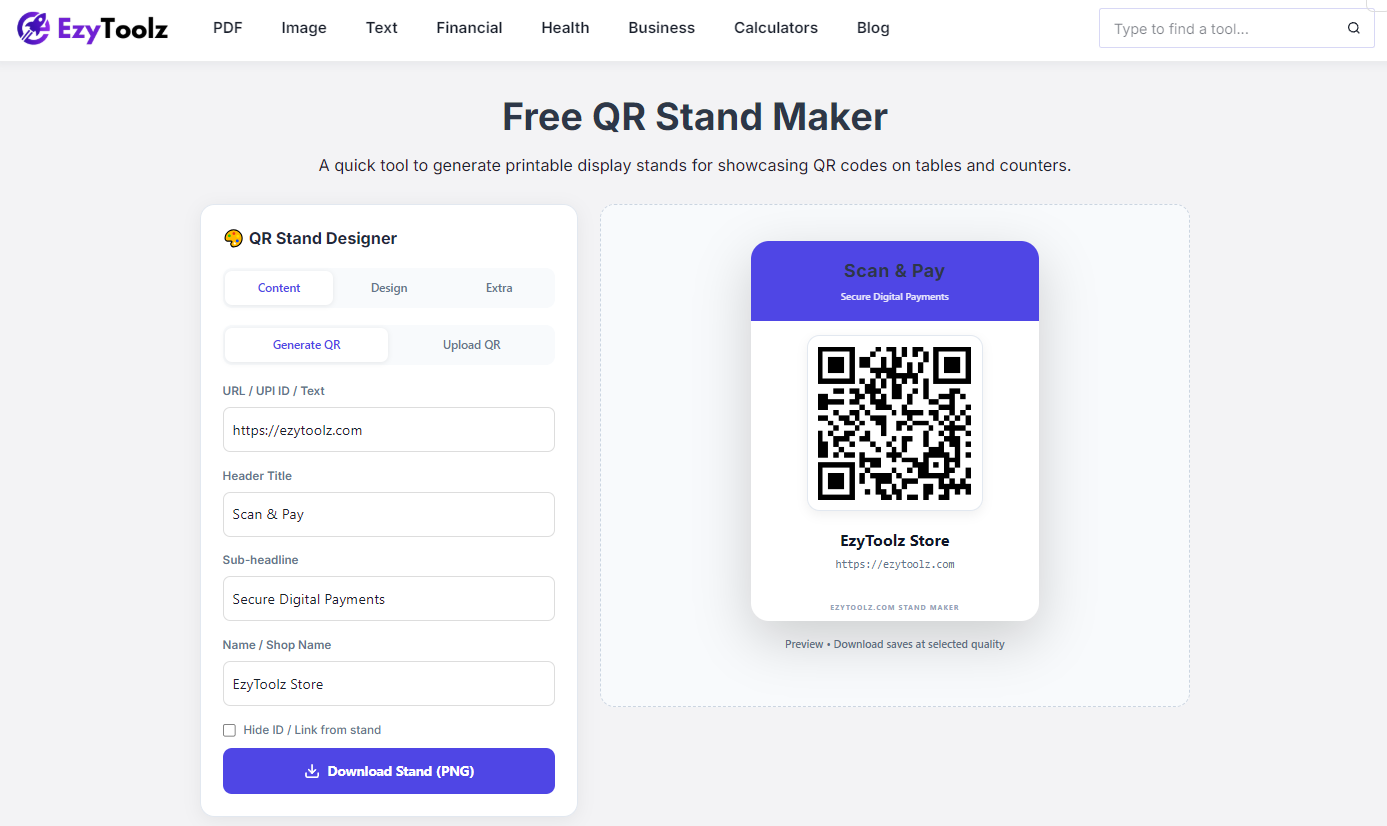
Go to ezytoolz.com/business/free-qr-stand-maker. No login page, no free trial wall. The tool opens immediately with a live preview on the right that updates as you type.
Step 2 — Enter your content
In the Content tab, choose between two modes. Generate QR creates a fresh QR code from any URL, UPI ID, or text you enter. Upload QR lets you use an existing QR image — useful if you already have a payment QR from your bank or a third-party service.
Fill in the Header Title (what appears at the top of the stand), a sub-headline, and your name or shop name below the QR code.
Step 3 — Customise the design
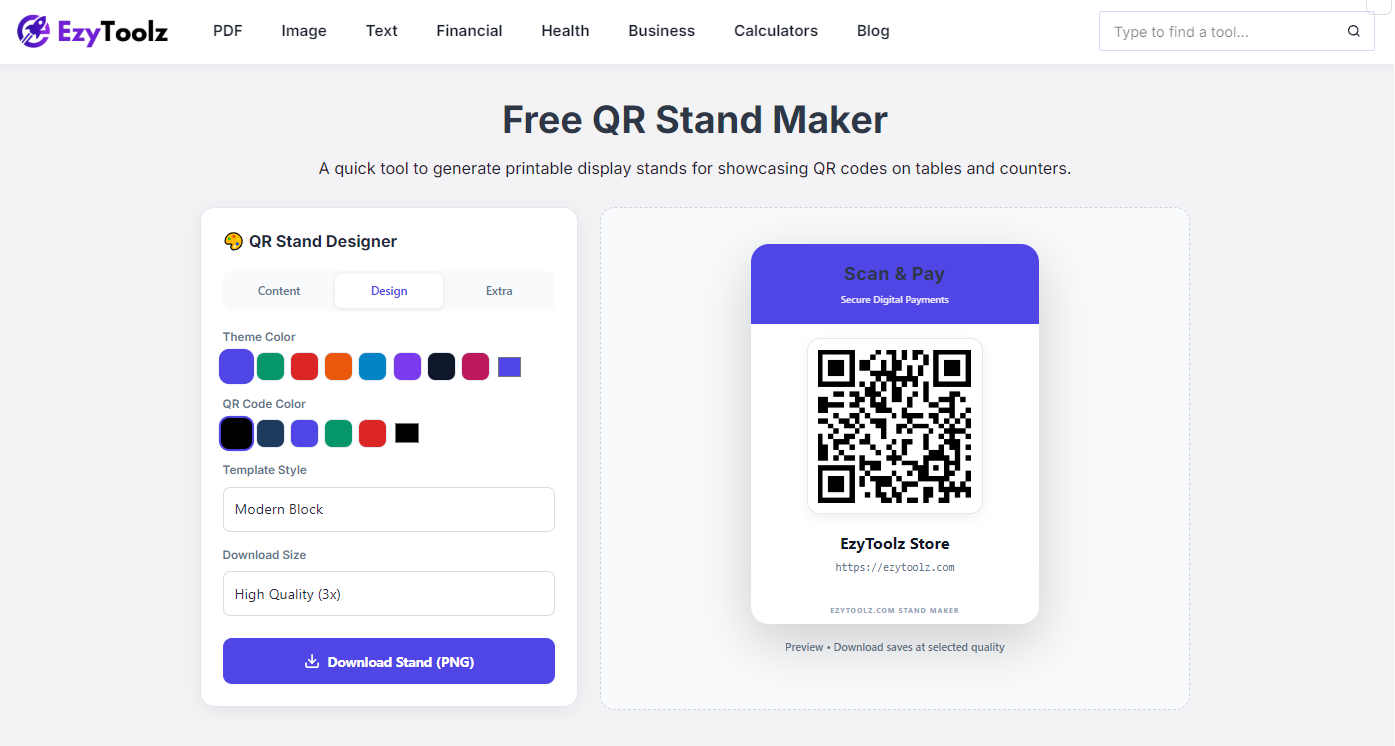
Switch to the Design tab. Pick a theme color for the header — there are eight preset colors plus a custom color picker. You can also change the QR code color itself, choose between three template styles (Modern, Minimal, or Rounded), and select the download quality (Standard, High Quality, or Print Ready for large format printing).
Step 4 — Add extras (optional)
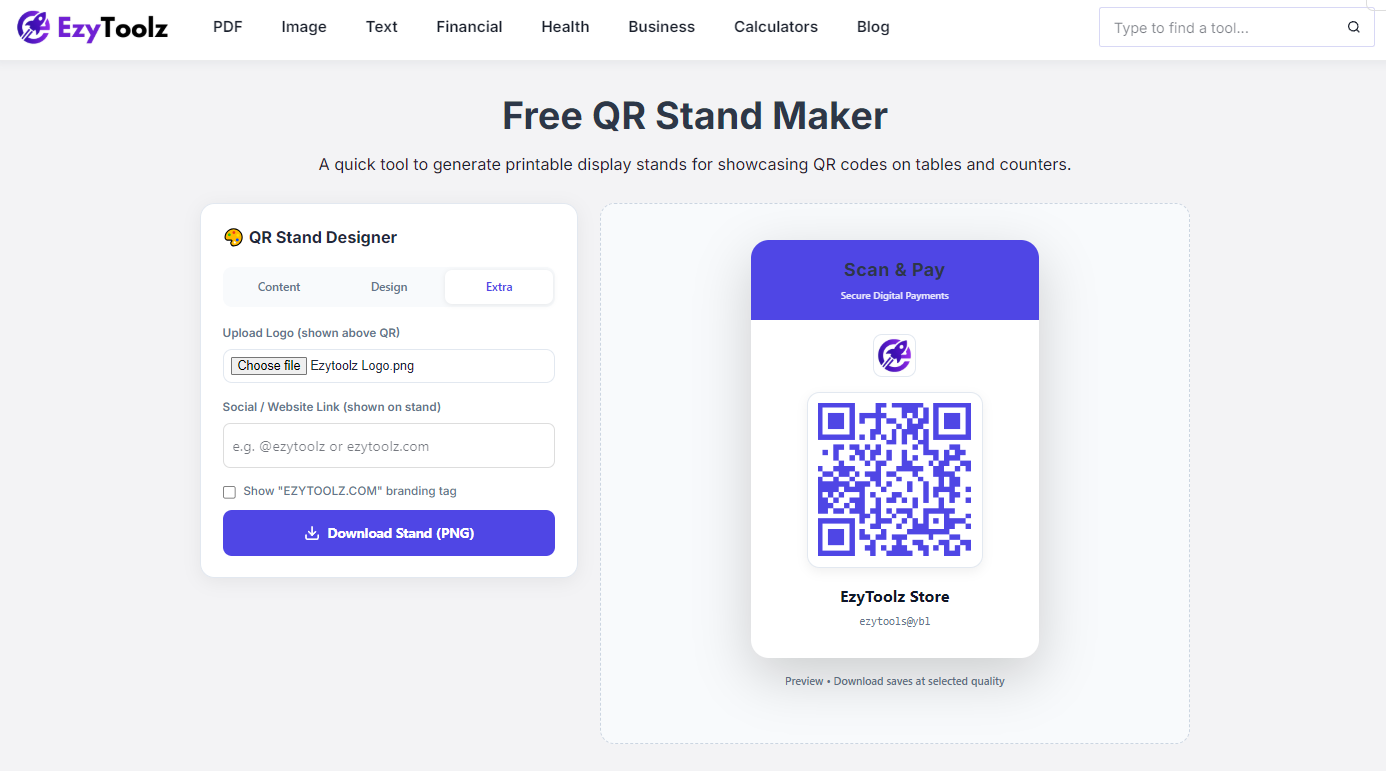
The Extra tab lets you upload a logo that appears above the QR code — useful for branded stands. You can also add a social handle or website link that appears at the bottom of the stand, and toggle the EzyToolz branding tag on or off.
Step 5 — Download
Click Download Stand (PNG). The file saves to your device at your chosen quality. Print on cardstock, fold, and it’s ready to place.
Tips for Getting the Best Results When Printing
A few things make a real difference between a stand that looks professional and one that looks like it was made in a hurry.
Use cardstock if possible. Regular 80gsm printer paper works, but it won’t hold its shape as well once folded. 160–200gsm cardstock stays upright much better, especially on busy surfaces where people might bump into it.
Print in high quality mode. QR codes rely on sharp contrast between the black modules and white background. Low-quality printing can blur the edges enough to cause scanning failures, especially in poor lighting. Set your printer to “high quality” or “best” before printing.
Test before you print in bulk. Always scan the QR code from the downloaded file on your screen first. Then print one copy and scan that. If both work, you’re good to print as many as you need.
Keep the label text short. “Scan to order” works better than “Please scan this QR code to access our digital menu and place your order.” People read the label in half a second. Short and clear wins.
Can You Use This for Both Indoor and Outdoor Displays?
For indoor use, a printed card stand works perfectly. For outdoor use — markets, food trucks, entrance gates — consider laminating the printed stand or slipping it into a clear plastic card holder. Both options are inexpensive and make the stand waterproof and more durable.
FAQ — QR Code Stand Maker
Can I create a QR code stand for a restaurant menu without design skills?
Yes, completely. The EzyToolz QR stand maker is built specifically for people who aren’t designers. Enter your link, add a short label, choose a colour if you like, and download. There are no layers, no artboards, no font choices to agonise over. It’s designed to produce a clean, usable result in the shortest possible time.
What size does the QR code stand print at, and can I change it?
The default output is formatted for standard A4 paper, which folds into a table tent size suitable for most counter or table displays. If you need a different size — for a small café table or a large reception desk — you can scale the print output in your printer settings. Printing at 80% gives a smaller, more compact stand; printing at 120% gives something more visible from a distance.
Can I add my business logo to the QR code stand?
Yes. Go to the Extra tab in the tool and upload a logo image. It appears centered above the QR code on the stand, giving the design a branded feel rather than a generic card. Supported formats include JPG, PNG, and WebP. Keep the logo image square or close to square for the best result — the tool displays it in a small rounded square above the QR area.
Does the QR code on the stand expire?
No. Static QR codes — which is what this tool generates — do not expire. The QR code will work as long as the link it points to is active. If you change your website URL or menu link in the future, you’ll need to generate a new QR code with the updated link, but the old one will continue to work until the destination link itself stops working.
Can I use the QR code stand for a Google review link?
Yes, and this is one of the most popular use cases for small businesses. Generate a QR code using your Google review link (available from your Google Business Profile), add a label like “Enjoyed your visit? Leave us a review”, download, print, and place it at your checkout counter. Customers who scan it land directly on the review page — removing the friction of searching for your business manually.
Is the QR code stand maker free for commercial use?
Yes. There are no licensing restrictions on stands you create and download using EzyToolz. You can use them for your own business, print them for clients, or include them in event materials without any additional cost or attribution required.