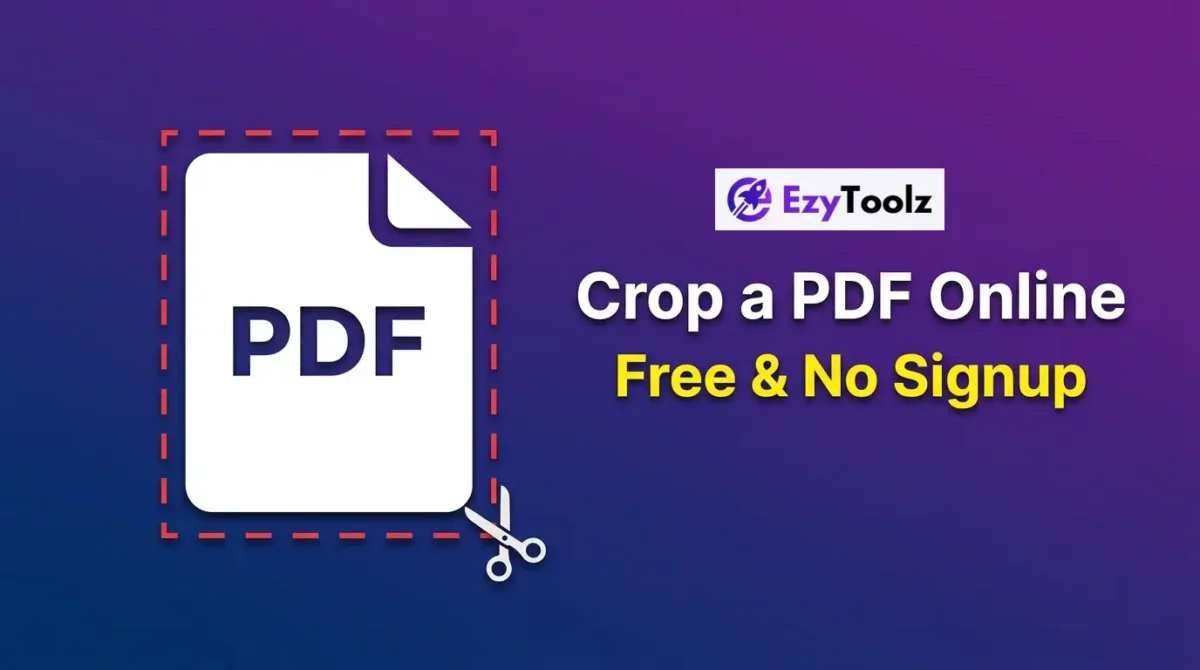

There’s a specific kind of frustration that comes with opening a PDF and realising half the page is just dead white space. Maybe it came from a scanner with oversized margins. Maybe someone designed a document with enormous padding on every side. Either way, you just want to trim it down and move on.
The problem? Most crop PDF tools online ask you to sign up, charge after the second file, or produce output that somehow looks worse than what you started with.
This guide walks you through cropping a PDF using EzyToolz — a free browser tool that doesn’t touch your account wallet or your patience.
Before You Crop: One Thing Worth Knowing
Cropping a PDF works differently than cropping an image. When you crop an image, those pixels are gone. When you crop a PDF, the content outside the crop boundary is hidden but still technically in the file. The page dimensions change, the visible area changes, but the underlying data stays untouched.
This is good news for two reasons. First, the output quality is identical to the original — no compression, no re-rendering. Second, if you ever need to reverse it later in a PDF editor, that content is still recoverable.
Step-by-Step: How to Crop a PDF Using EzyToolz
Step 1 — Go directly to the tool
Open your browser and visit ezytoolz.com/pdf/crop-pdf. The tool loads immediately — no pop-up asking for an email, no countdown timer, no “you have 2 free crops remaining” warning.
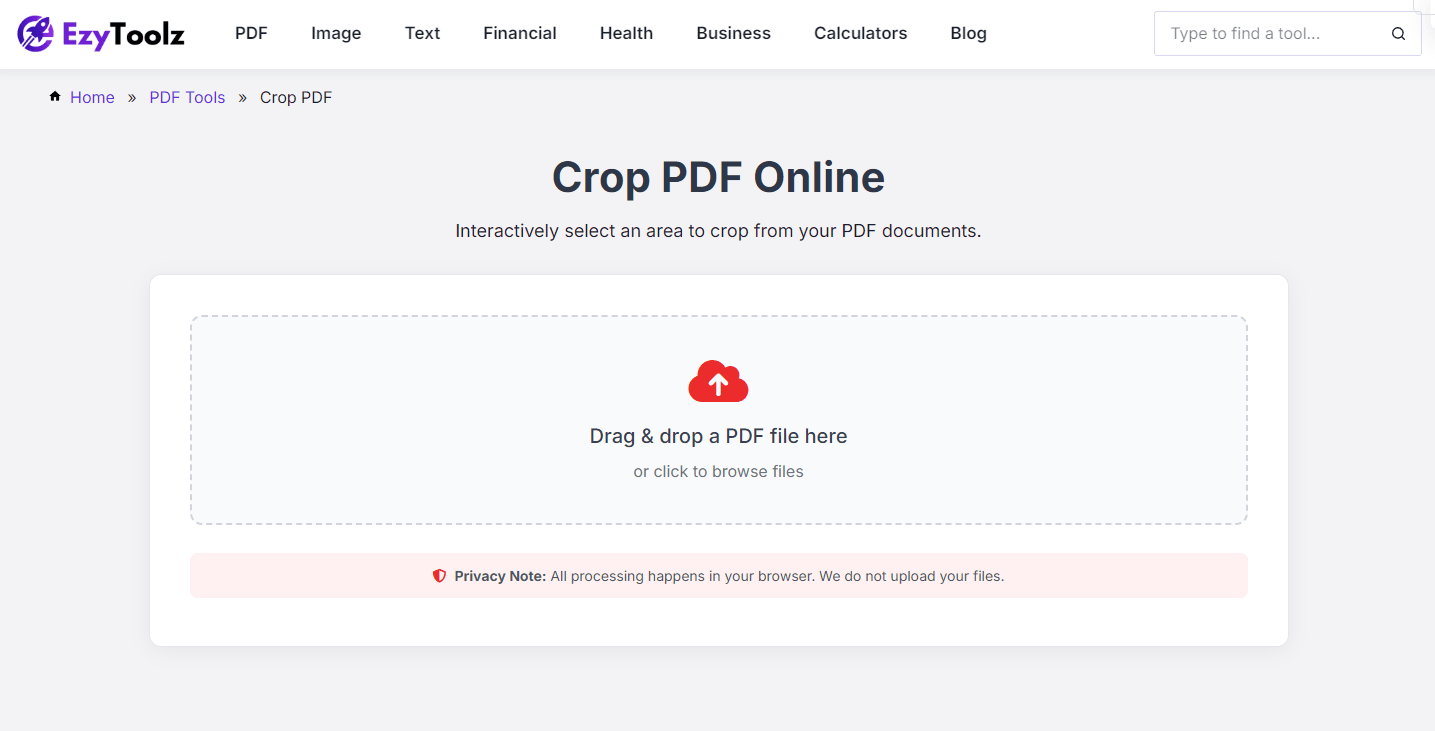
Step 2 — Upload your PDF
Click the upload box or drag your file straight onto it. The tool works with standard PDF files of all sizes. Multi-page documents load fully, not just the first page.
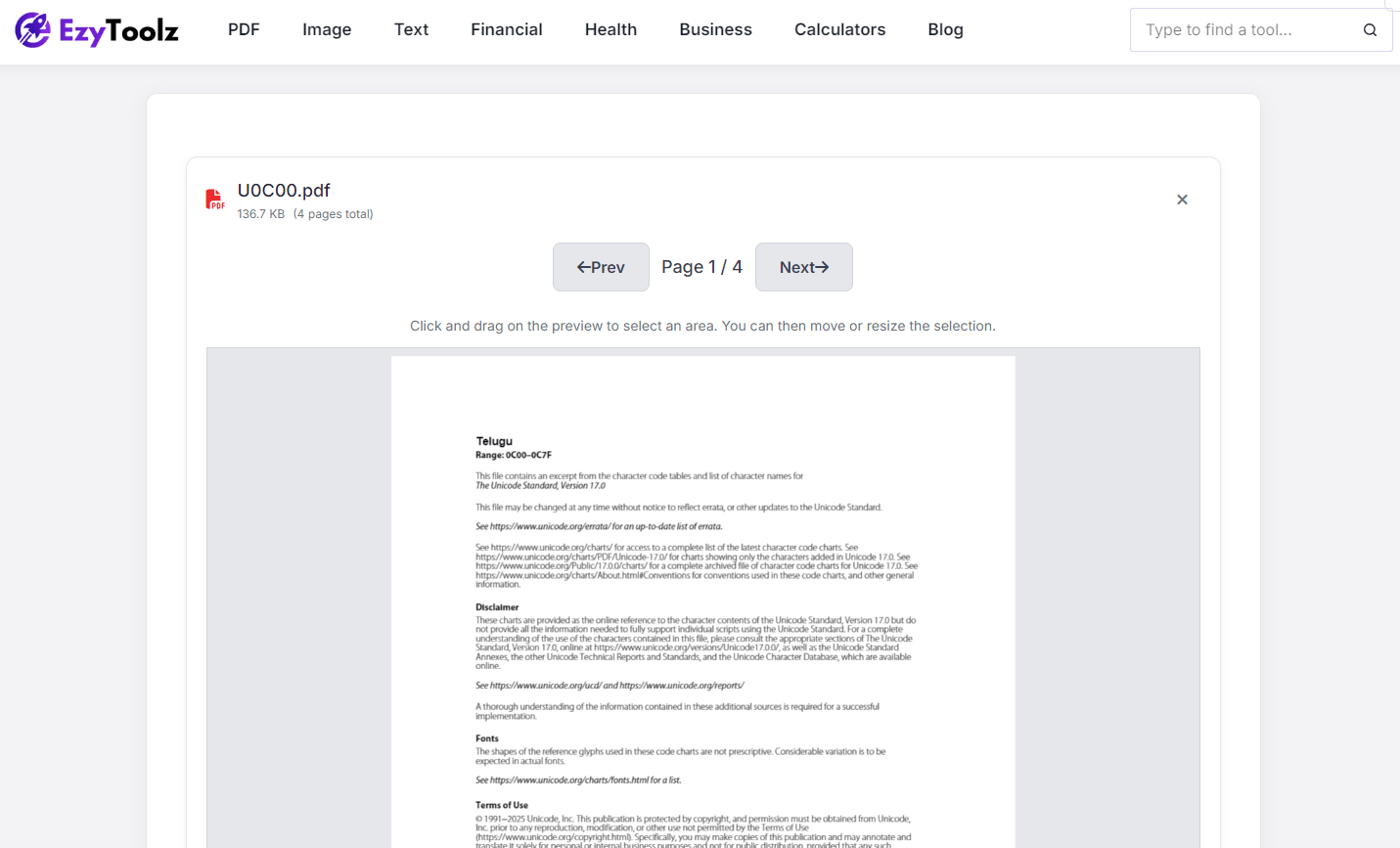
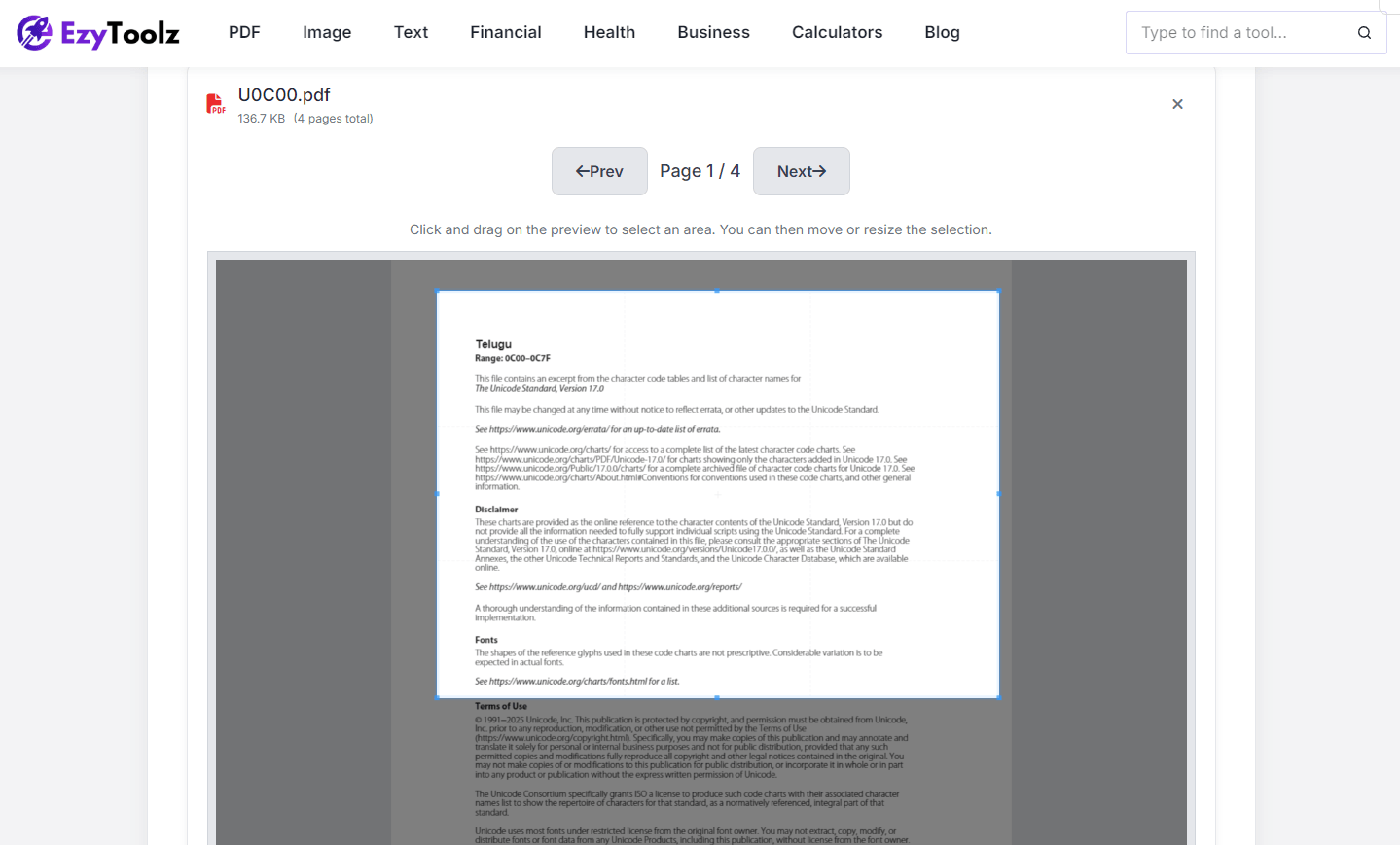
Step 3 — Choose your crop area
Once uploaded, you’ll see your PDF page with an adjustable selection box. Drag the edges inward until only the content you want remains visible. If your document has multiple pages, you can apply the same crop to all of them at once or handle each page separately — useful when page layouts differ.
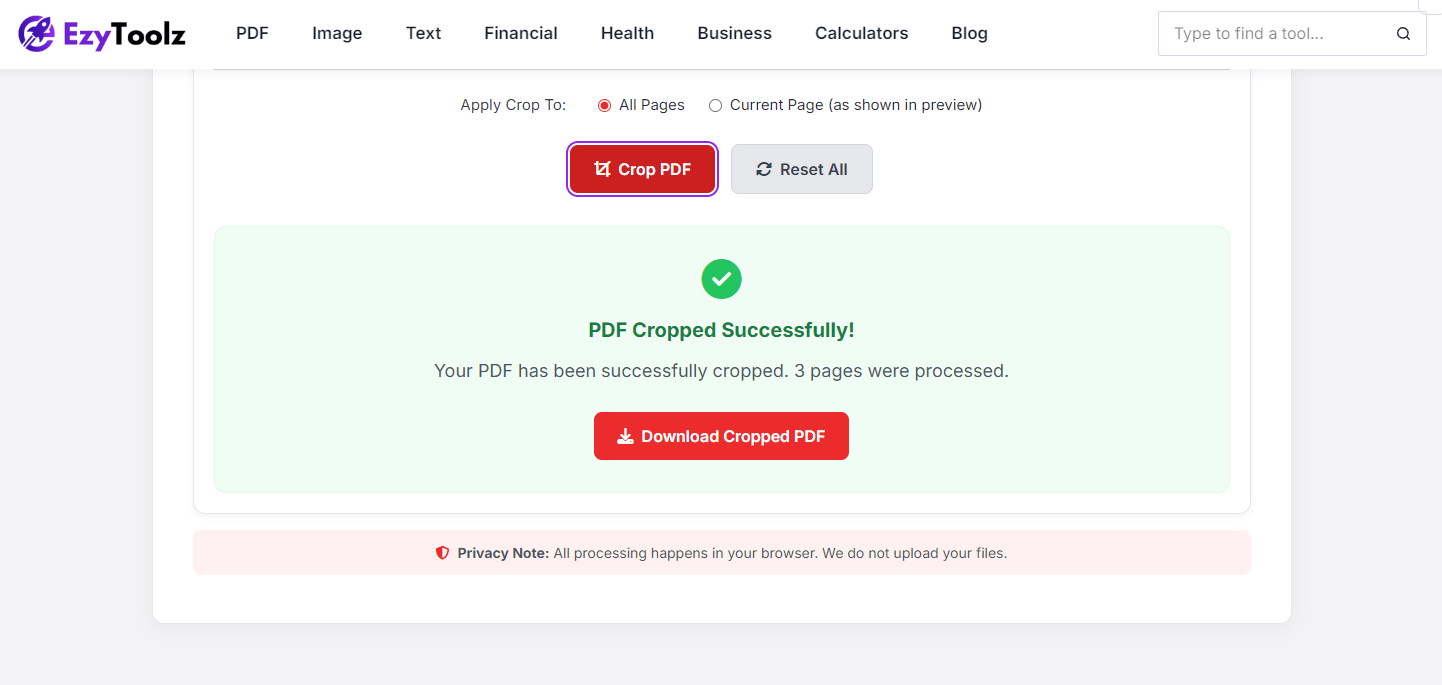
Step 4 — Download the result
Click crop, wait a moment, and download. The output is a clean PDF with the trimmed page dimensions — ready to send, print, or upload wherever you need it.
Three Situations Where Cropping a PDF Actually Saves Time
Scanned documents with black borders or shadow edges
Scanning is imperfect. Most home scanners pick up the edge of the glass, leaving a dark shadow or black strip along one or more sides of every page. Cropping removes that entirely — and makes the document look like it was created digitally rather than scanned.
E-book or academic paper reading on a tablet
A paper formatted for A4 printing has margins designed for printed pages, not screens. On a tablet, those margins take up a significant portion of the display. Crop them down and the text suddenly becomes much more readable without constantly zooming.
Extracting a single chart or table from a multi-page report
Rather than screenshotting and losing quality, crop the PDF page to show only the chart or table. The result is vector-sharp, text stays selectable, and the file size stays small. Then convert to JPG if needed using EzyToolz’s PDF to JPG tool.
Does Cropping Change the File Size?
Usually by a small amount, yes. Since the visible page area decreases, the file stores slightly less page geometry. But the change is minor — don’t crop a PDF expecting it to go from 10MB to 1MB. If reducing file size is the goal, use the Compress PDF tool after cropping. Both tools are free and available on EzyToolz without switching platforms.
FAQ — Crop PDF Online
Can I crop only one page in a multi-page PDF without affecting the rest?
Yes, completely. The EzyToolz crop tool lets you choose which pages to apply the crop to. Select a specific page number or a custom range — for example, pages 1 to 3 only — and the remaining pages stay exactly as they are. This is useful when the cover page has different margins than the body pages.
How do I crop a PDF to remove white margins automatically?
For most documents, you can manually drag the crop box until the white space disappears. If you want a faster approach for scanned documents, set the crop lines close to where the actual text or content begins on each side. Some tools offer auto-crop — if you need that feature and don’t want to adjust manually, look for the auto-margin option in the tool settings.
Why is my cropped PDF still showing the old page size when I open it?
This can happen in older PDF viewers that interpret the original page dimensions rather than the updated crop box. Try opening the file in a newer PDF reader, or re-save it using the EzyToolz tool once more. Most modern viewers — Chrome, Edge, Adobe Reader, Foxit — correctly display the cropped dimensions.
Can I crop a PDF on my phone without downloading an app?
Yes. EzyToolz runs entirely in a mobile browser — Chrome on Android, Safari on iPhone, or any other browser you prefer. No app download needed. The crop interface adjusts to the screen size, so selecting the crop area on a phone works the same way as on a desktop.
Is there a difference between cropping a PDF and resizing a PDF?
Yes, and it matters. Cropping changes the visible area of the page — content outside the crop boundary is hidden. Resizing changes the actual page dimensions — scaling the content up or down to fit a different paper size, like A4 to Letter or vice versa. If you want to change the paper size rather than trim the content, a PDF resize tool is the right option. If you just want to remove unwanted space around the content, cropping is what you need.
Can I crop a password-protected PDF?
No — protected PDFs block most editing operations, including cropping. You would need to remove the password first using the EzyToolz Unlock PDF tool, then crop the file, and re-apply protection if needed using the Protect PDF tool. All three are available for free on the same platform.