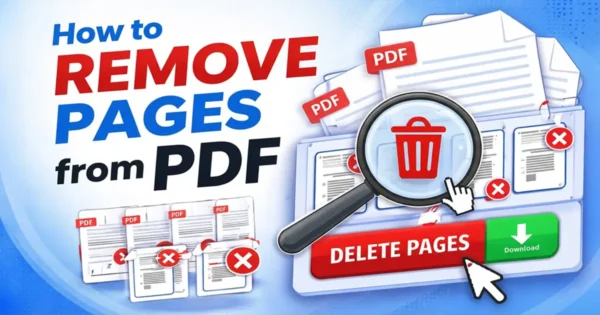

You have a PDF ready to send – but there are two blank pages in the middle, or a page with information you do not want to share. You do not have Adobe Acrobat. You do not want to download any software. You just need to delete those pages and get on with it.
That is exactly what the EzyToolz Remove PDF Pages tool is for. Upload your file, click the pages you want to remove, and download the cleaned-up version. The whole thing takes about 30 seconds, and nothing gets installed on your device.
Why Would You Need to Remove Pages from a PDF?
There are more reasons than you might think. Here are the most common ones:
- Blank pages from scanning: Scanners often add empty pages between sheets. They serve no purpose and make the file look unprofessional.
- Confidential information: A document might have an internal page – salary details, personal contact info, private notes – that should not be in the version you share.
- Extracting one section: If you only need Chapter 2 from a 50-page report, deleting the rest is faster than copying content into a new file.
Reducing file size: Every page adds to the file size. Removing unnecessary pages – especially ones with heavy images – makes the file smaller and easier to email or upload.
How to Remove Pages from PDF Online – Step by Step
No account needed, no software to install. Here is how it works:
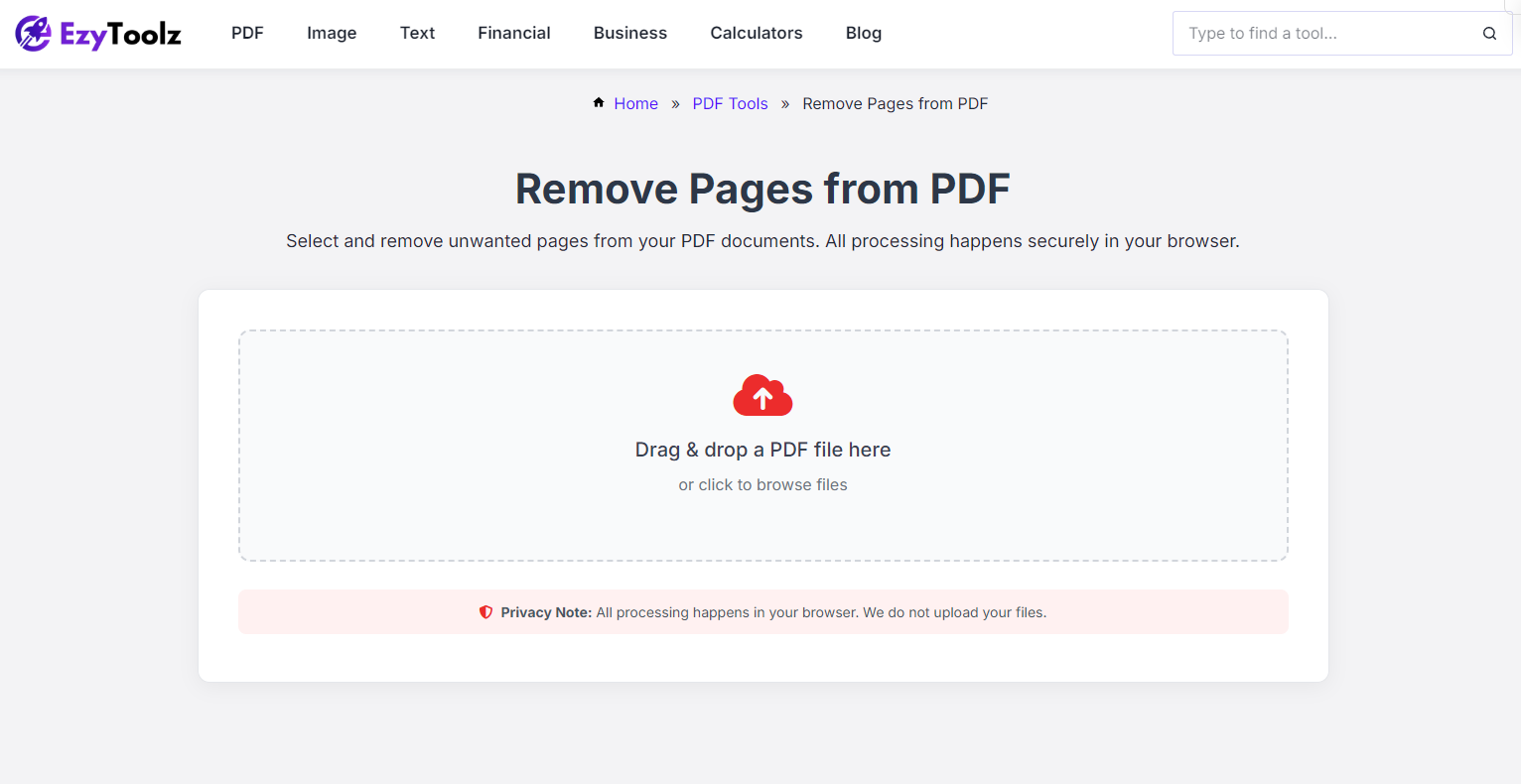
Step1: Open the EzyToolz Remove PDF Pages Tool
Go to ezytoolz.com/pdf/remove-pdf-pages/ in your browser. Works on Chrome, Safari, Firefox – desktop or mobile.
Step2: Upload Your PDF File
Click ‘Select PDF File‘ or drag and drop your file onto the upload area.
The tool accepts PDFs of any size and page count. Your file loads as a visual page preview – you can see every page before making any changes.
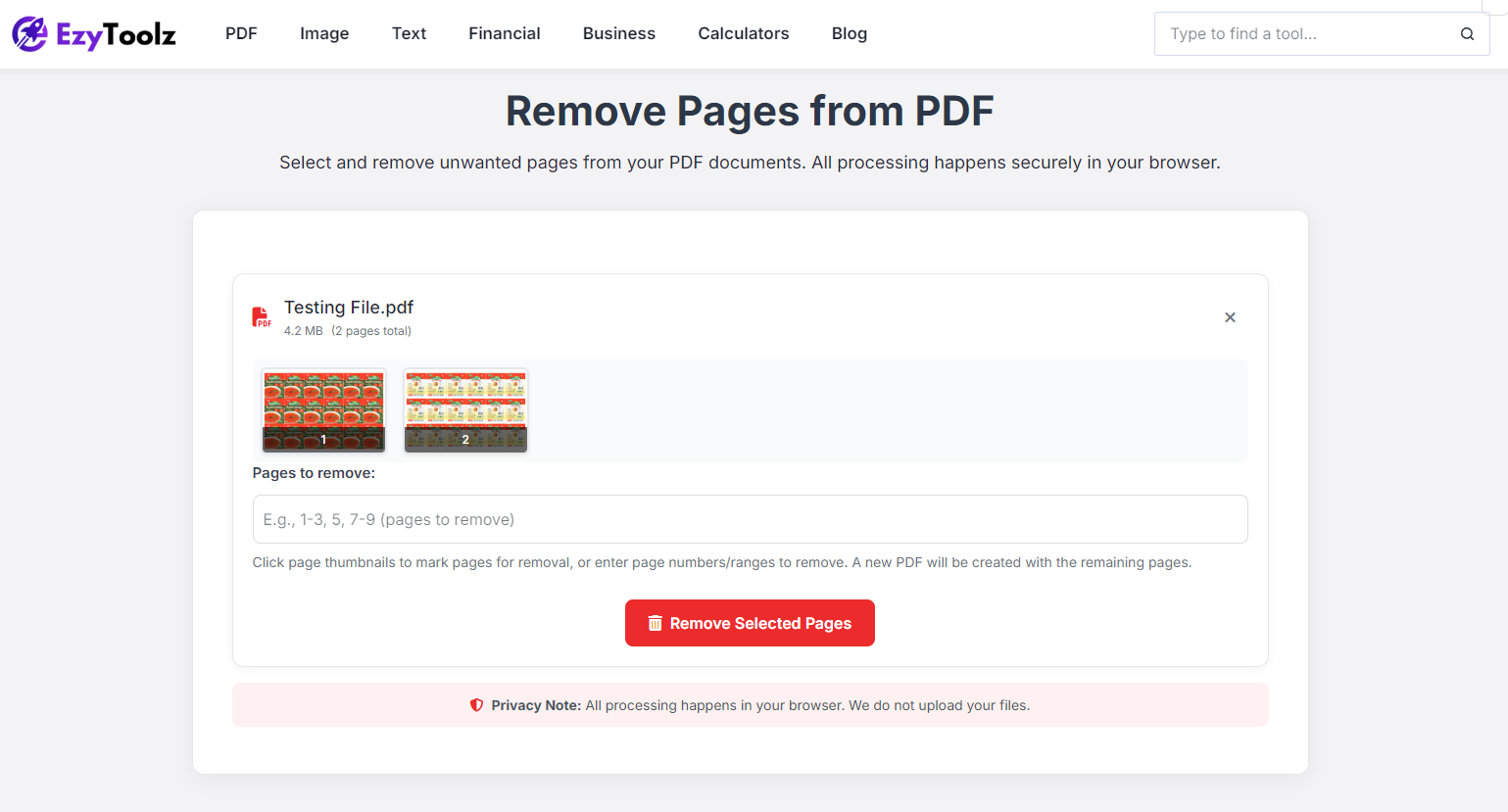
Step3: Click the Pages You Want to Delete
Each page appears as a thumbnail in the preview.
Click any page to select it for removal – it will be highlighted.
You can select multiple pages at once. Changed your mind? Click again to deselect.
Step4: Remove and Download
Click the ‘Remove Pages‘ button.
The tool processes your file directly in your browser – nothing is uploaded to a server. Once done, click ‘Download’ to save your edited PDF.
Tip — Check page numbers before deleting
PDFs sometimes show different page numbers than the actual file order. For example, the cover page might be labelled page 1 in the document but it sits at position 0 in the file. Always use the visual thumbnail preview to confirm you are selecting the right pages before removing them.
What Makes EzyToolz Remove Pages Tool Worth Using
| Feature | What it means for you | |
| 🆓 | Completely Free | No payment, no trial version, no watermark on your downloaded file. |
| 🔒 | Browser-Based Privacy | Your PDF is processed locally in your browser. It is never uploaded to a cloud server or seen by anyone. |
| 📱 | Works on Any Device | Open it on your phone, tablet, laptop, or desktop – any browser, any operating system. |
| ⚡ | No Software Install | Nothing to download. No risk of malware hiding in a ‘free PDF editor’ app. |
| ✂️ | No Page Limit | Delete one page or twenty at once – there is no restriction on how many pages you can remove. |
| 🎯 | Original Quality Kept | The remaining pages stay exactly as they were – same fonts, same formatting, same resolution. |
A Few Things Worth Knowing Before You Start
- Save a copy first: Before deleting anything, keep the original PDF somewhere safe. It takes 10 seconds and saves you trouble if you accidentally remove the wrong page.
- Use the preview: Do not guess page numbers. The visual thumbnail preview shows you exactly what is on each page before you commit to removing it.
- File size will drop: Removing pages — especially image-heavy ones – reduces the file size. If you are trying to get a PDF under a size limit for a government portal or email attachment, removing unnecessary pages is a good first step before compressing.
Need to do more? After removing pages, you can also compress the PDF, merge it with another file, or split it further – all free at EzyToolz.
Frequently Asked Questions (FAQs)
Can I remove pages from a PDF without Adobe Acrobat?
Yes – you do not need Acrobat or any paid software. EzyToolz works entirely in your browser. Just upload your PDF, select the pages you want to remove, and download the result.
Is it safe to upload my PDF to remove pages?
Your file is processed locally in your browser using JavaScript – it does not leave your device. There is no server upload for this tool, which means your documents stay completely private.
How do I remove pages from a PDF on my phone?
Open ezytoolz.com/pdf/remove-pdf-pages/ in Chrome or Safari on your phone. The tool works the same way on mobile – upload your PDF from your phone storage, tap the pages you want to remove, and download the edited file.
Will removing pages reduce my PDF file size?
Yes. Every page you remove reduces the file size. Pages with images reduce it the most. If you need your PDF under a specific size limit – like 1MB for a government portal – removing unnecessary pages is a useful first step.
How many pages can I delete at once?
There is no limit. You can remove one page or select every page except the ones you want to keep. The tool handles it the same way regardless of how many pages you select.
What happens if I delete the wrong page by mistake?
The tool only finalises changes when you click the Remove Pages button. Before that, you can click any selected page again to deselect it. If you have already downloaded the wrong version, that is why keeping a copy of the original is always a good idea.
That Is All There Is to It
Removing pages from a PDF does not need to be complicated. Whether you are cleaning up a scanned document, removing a confidential page before sharing, or just trimming a file down to what actually matters – EzyToolz gets it done in under a minute, free, with no software and no account required.
If you also need to compress the PDF after removing pages, or merge it with another file, both tools are available at EzyToolz – all free, all browser-based.