
You’ve seen them everywhere — on restaurant menus, business cards, product packaging, Instagram bios, and event posters. QR codes have quietly become one of the most practical ways to share information without making someone type a long URL or memorize details.
The good news? You don’t need a paid tool, a monthly subscription, or any design skills to create one. In this guide, I’ll show you exactly how to generate a free QR code online using EzyToolz — in under 60 seconds — and how to customize it so it actually looks like something you made with intention.
What Is a QR Code and Why Does It Still Matter in 2026?
QR stands for Quick Response. It’s a 2D barcode that can store text, links, contact details, Wi-Fi credentials, and more. Your phone’s camera app can read it instantly — no third-party scanner needed.
Some people thought QR codes were a passing trend. Then the pandemic happened, and suddenly contactless menus, payment links, and check-in forms made QR codes mainstream again. In 2025, they’re more relevant than ever for:
- Small business owners sharing their website or menu without printing long URLs
- Freelancers and professionals adding contact details to business cards
- Teachers sharing Google Classroom links or assignment PDFs with students
- Event organizers directing guests to registration pages
- Marketers tracking offline-to-online campaign performance
- Creators linking Instagram followers to their latest YouTube video
The use cases are endless — and the barrier to entry is basically zero if you use the right tool.
A Quick Look at the EzyToolz QR Code Generator
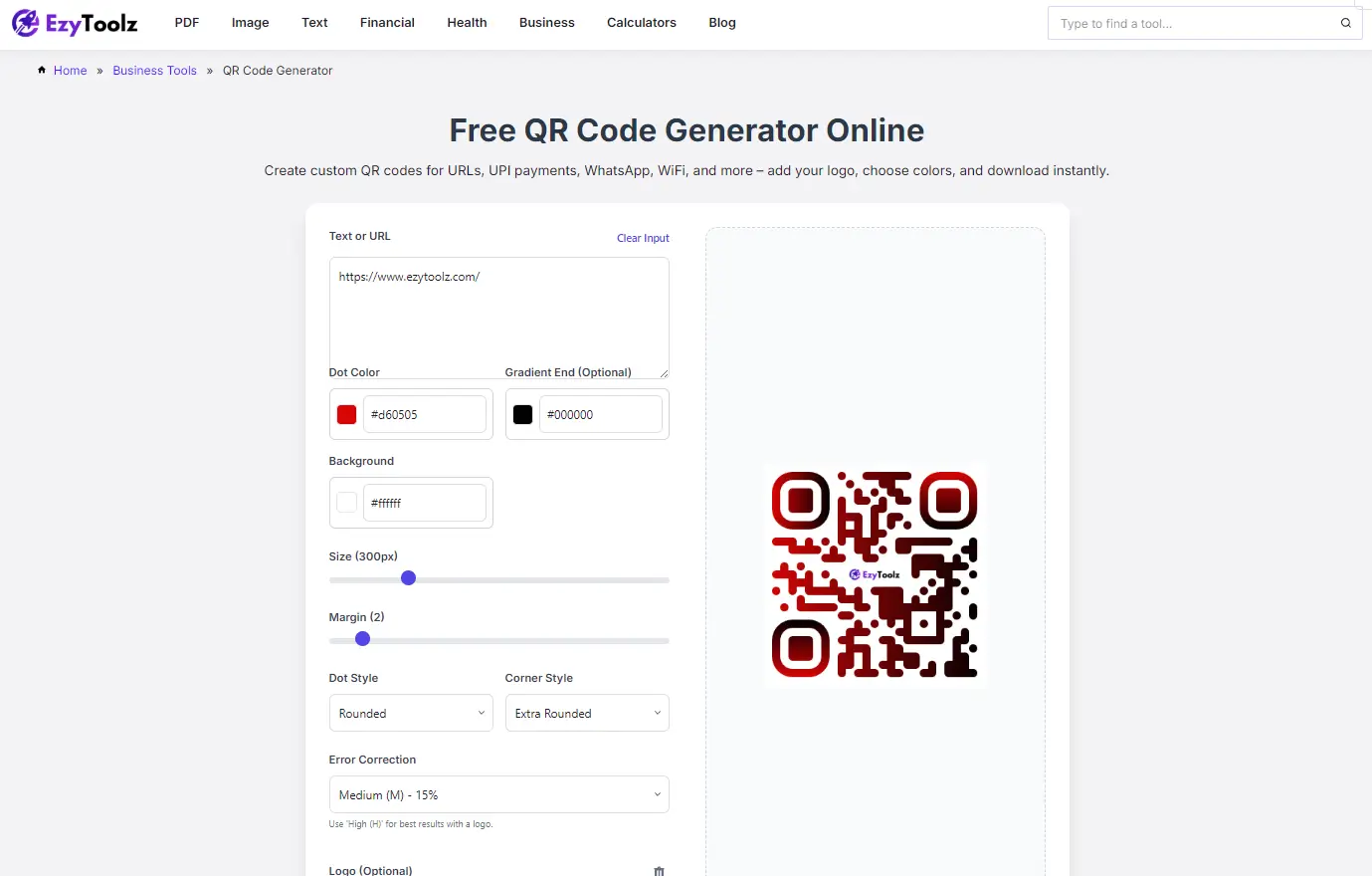
Before we dive into the how-to, here’s what the tool looks like when you open it:
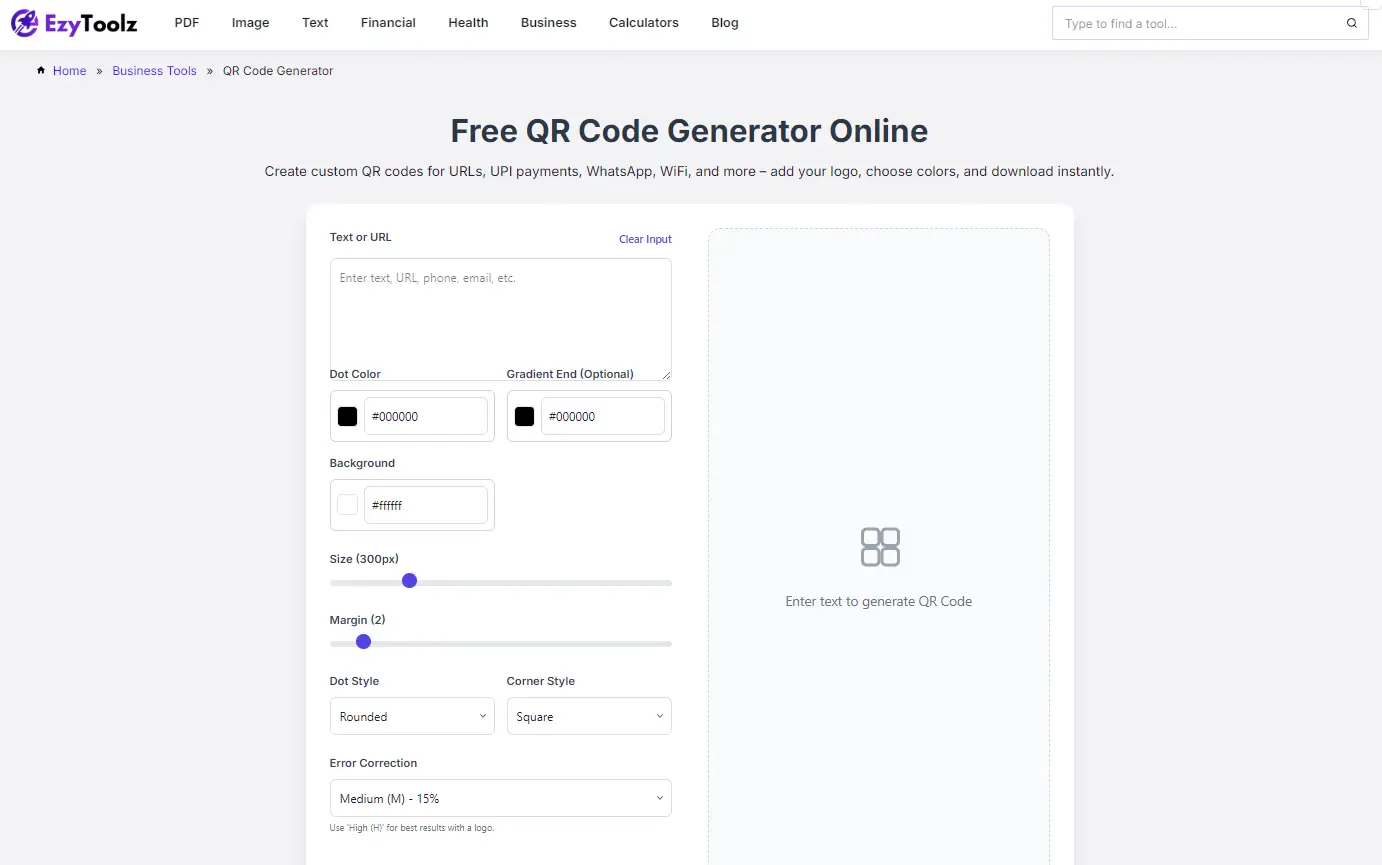
On the left side, you enter your content and customize the design. On the right, your QR code updates in real time as you type. No clicking a “Generate” button — it just works.
What Types of QR Codes Can You Create?
The EzyToolz QR Code Generator works with any text-based content. Here’s what that means practically:
| QR Code Type | What to Enter |
| Website Link | Paste any URL — https://yourwebsite.com |
| Plain Text | A message, quote, instruction, or note |
| Wi-Fi Password | Format: WIFI:T:WPA;S:NetworkName;P:Password;; |
| Email Address | Format: mailto:you@email.com |
| Phone Number | Format: tel:+919876543210 |
| SMS Message | Format: smsto:+91XXXXXXXX:Your message here |
| Google Maps Location | Paste the Google Maps share link |
| YouTube Video | Paste the video URL directly |
| Business vCard | Paste vCard formatted contact data |
💡 Pro tip: For Wi-Fi QR codes, use the exact format shown above. Guests scan once and connect — no password typing needed.
How to Create a QR Code on EzyToolz — Step by Step
Here’s the complete walkthrough. I’ve kept it simple so even if this is your first time making a QR code, you’ll be done in minutes.
Step 1 — Open the Tool
Go to ezytoolz.com/business/free-qr-code-generator/. No account needed, no email required. The tool loads directly in your browser.
Step 2 — Enter Your Content
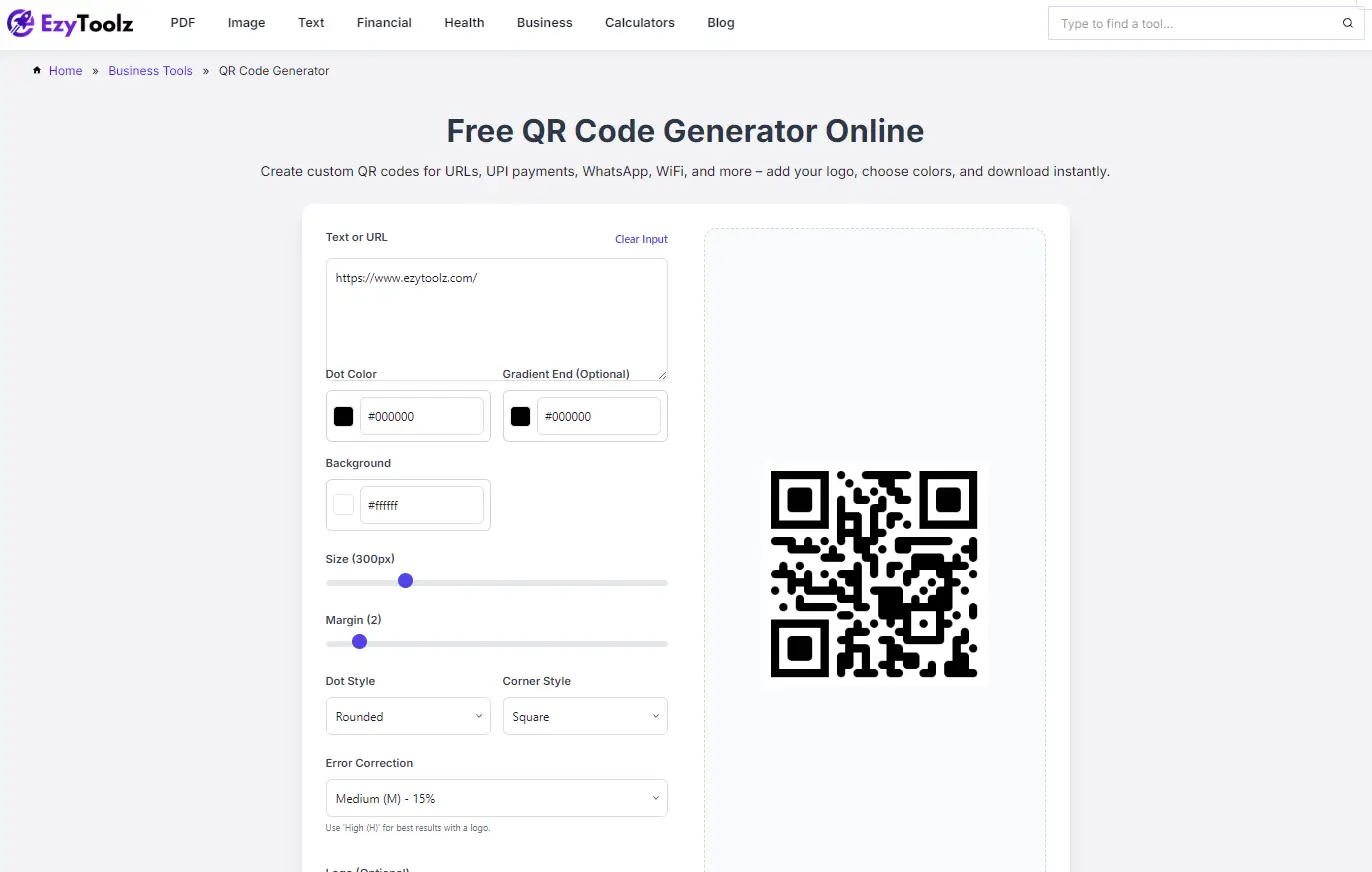
In the text box on the left, type or paste whatever you want the QR code to link to. This could be a URL, a phone number, a Wi-Fi password, or just a short message.
The QR code on the right side will appear instantly as you type.
Step 3 — Customize the Design (Optional but Worth It)
This is where most free tools stop short. EzyToolz lets you go further:
- QR Code Color — Change the foreground (dot) color to match your brand
- Gradient Support — Set a second color for a gradient effect across the dots
- Background Color — Change the white background to any color you want
- Dot Style — Choose from rounded, square, dots, classy, or extra-rounded patterns
- Corner Style — Change the corner squares to square or extra-rounded
- Size — Adjust the output size from small to large using the slider
- Margin — Control the white space around the QR code
- Error Correction — Set to L, M, Q, or H based on your use case
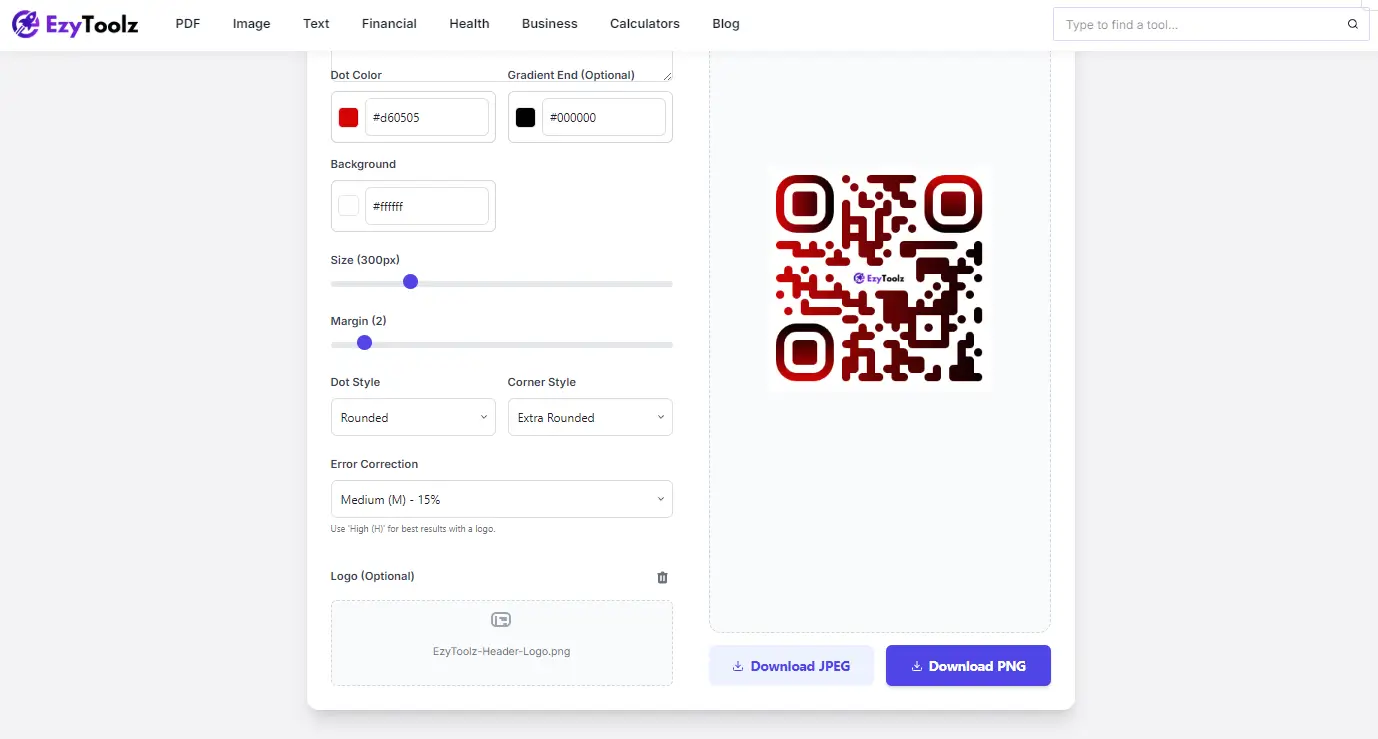
- Logo Upload — Drop in your brand logo and it appears in the center of the QR
💡 Important: If you’re adding a logo, set Error Correction to H (High). This ensures the QR code stays scannable even with part of it covered by the logo.
Step 4 — Download Your QR Code
Once you’re happy with how it looks, click Download PNG for a transparent background version, or Download JPEG if you need a smaller file size.
- PNG — Best for digital use, presentations, and designs where you need a clean background
- JPEG — Best for printing or embedding into documents where file size matters
Real-World Use Cases — Who’s Actually Using This?
For Small Business Owners
Put a QR code on your menu, storefront, or visiting card. Customers scan it and land directly on your website, WhatsApp number, or Google Reviews page. No typing required, no lost customers.
For Teachers and Educators
Generate a QR code that links to your Google Form, assignment PDF, or YouTube explainer video. Print it on the top of worksheets so students can scan and access resources immediately.
For Event Organizers
Create a QR code for your event registration link and include it on posters, WhatsApp forwards, and email invites. Attendees scan and register without needing to type a URL.
For Freelancers and Job Seekers
Add a QR code to your resume or portfolio that links to your LinkedIn profile, portfolio site, or a short video introduction. It’s a small detail that makes you memorable.
For Wi-Fi Sharing at Home or Office
Instead of spelling out your Wi-Fi password to every guest, create a Wi-Fi QR code once, print it out, and stick it near the router. Guests scan and connect instantly.
Tips to Make Sure Your QR Code Actually Scans
A QR code that doesn’t scan is worse than no QR code at all. Here’s what to watch out for:
- Always test before printing — scan it with at least two different phones before using it anywhere
- Don’t make it too small — for print, aim for at least 2.5 cm × 2.5 cm (roughly 1 inch square)
- Keep enough contrast — light dots on dark background or dark dots on light background both work, but avoid low-contrast combinations like yellow on white
- If adding a logo, use High error correction — this gives extra data redundancy so the QR still works
- Avoid stretching the image — always download at the size you need rather than scaling it up later
- For permanent use cases (printed materials, signage), consider where the link will be 6 months from now — if the URL might change, use a redirect link
Frequently Asked Questions
Is this QR code generator completely free?
Yes. The EzyToolz QR Code Generator is free to use with no limits and no signup required. You can create as many QR codes as you need, customize them, and download them without paying anything.
Do QR codes made with EzyToolz expire?
No. QR codes generated here are static — they’re just an encoded image. They don’t expire because nothing is stored on a server. As long as the URL or content you encoded is active, the QR code will keep working.
Can I add my logo to the center of the QR code?
Yes. Use the logo upload section in the tool to upload your brand logo. For best results, use a PNG with a transparent background and set the error correction level to H before uploading.
What’s the best size to download a QR code for printing?
Use the size slider to set the output to 1000px or higher for print use. For digital use (website, email, social), 400–600px is usually enough. Always download as PNG for the best quality.
Why is my QR code not scanning properly?
A few common reasons: the contrast between dot color and background is too low, the QR code is too small in the printed or digital version, or you’re using a very complex URL that generates a dense QR code. Try increasing the error correction level and simplifying your URL if possible.
Can I create a QR code for WhatsApp or Instagram?
Yes. For WhatsApp, enter https://wa.me/91XXXXXXXXXX (replace with your number). For Instagram, just paste your profile URL. Both will work perfectly.
What format should I use — PNG or JPEG?
PNG is better for most cases because it supports transparency. Use JPEG only if you specifically need a smaller file size and a white background is fine for your use.
Ready to Create Your QR Code?
You now have everything you need. The EzyToolz QR Code Generator is free, fast, and more capable than most paid alternatives for everyday use cases.
No app to install. No account to create. No watermarks on your QR code.
👉 Try it now: ezytoolz.com/business/free-qr-code-generator/
If you found this helpful, share it with someone who’s been asking how to create a QR code for their business card or café menu. It’ll save them a lot of time.