
Finding out what theme a website is using is easier than most people think. You’re browsing the web and land on a site that looks exactly like what you want to build. Clean layout, great typography, everything just works. The first thought — what theme is this?
Most people either give up or try to dig through page source code, which for non-developers is a 10-minute exercise in frustration. There’s a much faster way. You can find what theme any website is using in under 10 seconds — no coding, no browser extensions, nothing to install.
The Fastest Way — Use a Theme Detector Tool
The easiest method is a free online WordPress theme detector. You paste the website URL, click detect, and the tool scans the site’s source code and tells you the theme name, active plugins, CMS platform, and more.
The EzyToolz WordPress Theme Detector does exactly this — paste any URL and get results in seconds.
Here’s how to use it:
Step 1 — Open the tool Go to ezytoolz.com/web-seo/wordpress-theme-detector/
Step 2 — Enter the URL Paste the website address you want to check. Works with or without https://.
Step 3 — Click Detect The tool fetches the page from its server and scans the HTML source code.
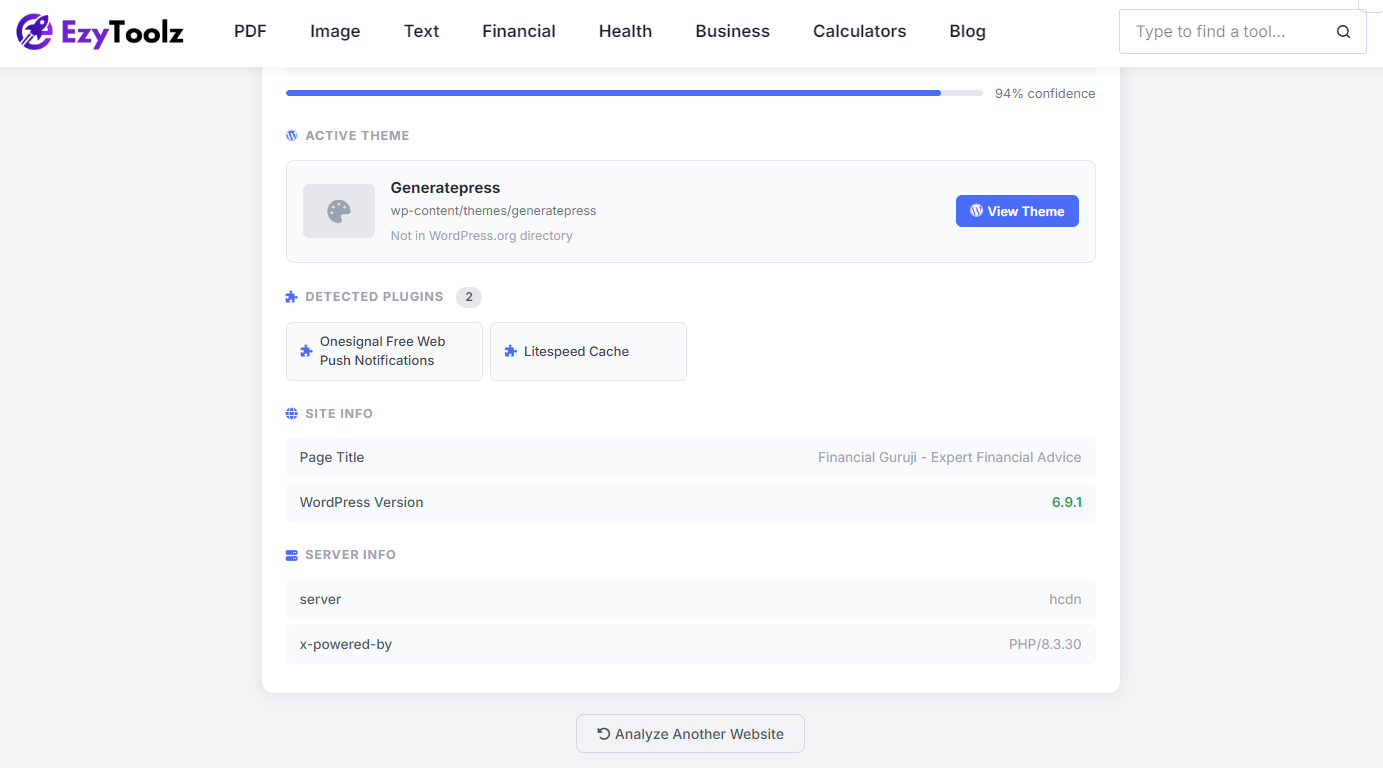
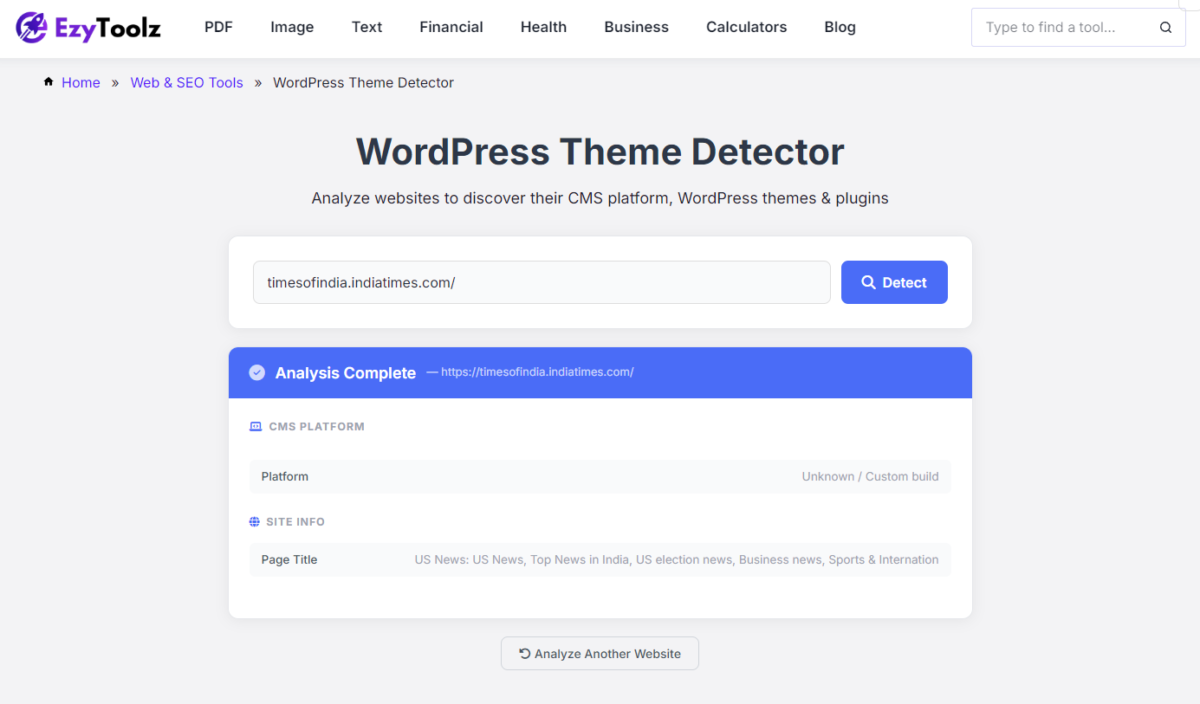
Step 4 — Read the results You’ll see the CMS platform, active theme name with a link to download it, detected plugins, WordPress version, and server details.
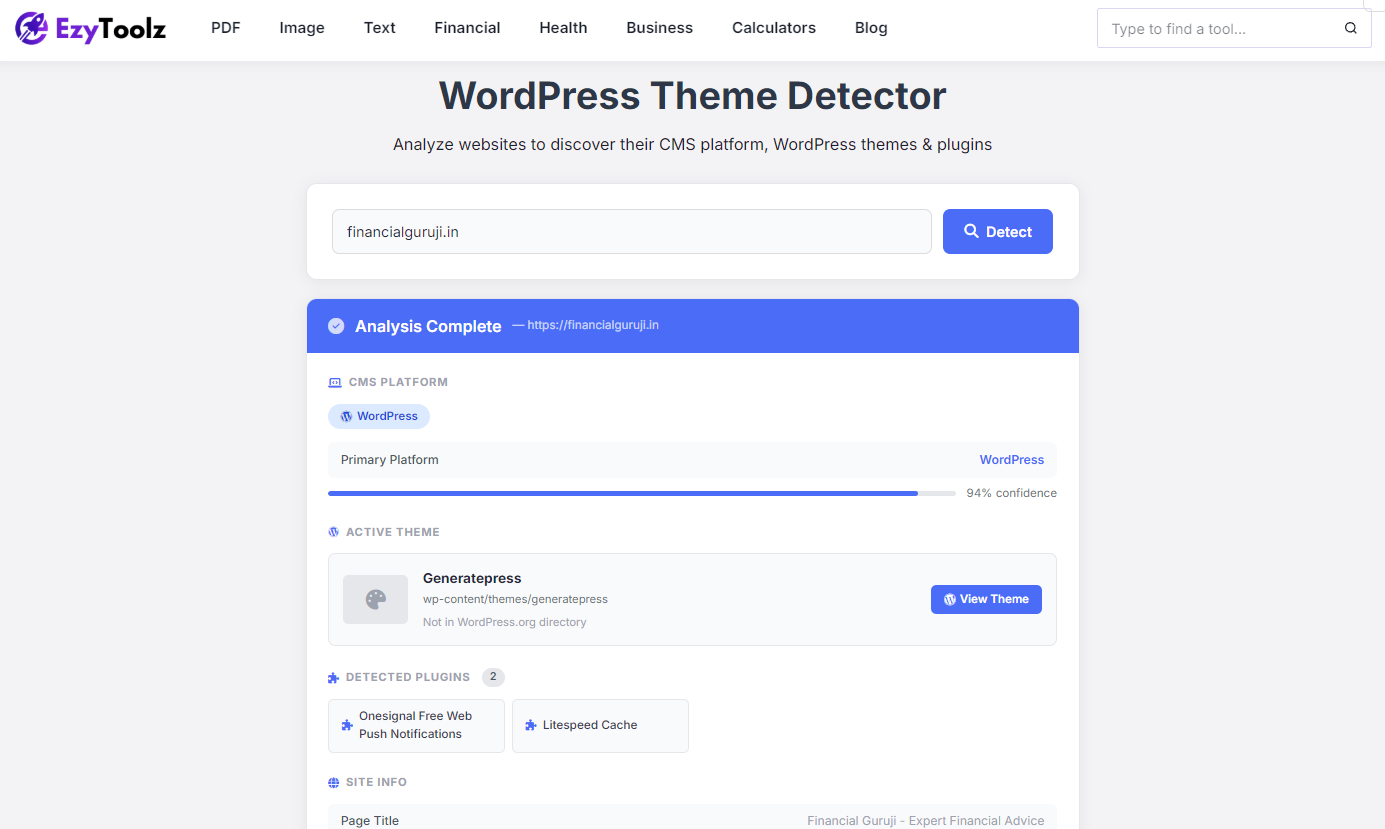
Results appear in 3–8 seconds for most sites.
What the Tool Shows You
Theme name — the exact theme the site is running, with a direct link to its WordPress.org page or download source. One click and you’re on the theme’s page ready to install it.
CMS platform — tells you whether the site runs WordPress, Shopify, Wix, Webflow, Joomla, Drupal, or another platform. Useful because not every site you check will be WordPress — and knowing the platform upfront saves time.
Confidence score — shown as a percentage next to the CMS detection. Above 80% means multiple signals were found and the detection is reliable. Between 60–80% means the platform was likely identified but some markers may have been removed.
Active plugins — a list of plugins referenced in the page’s HTML. This tells you what functionality the site uses — contact forms, SEO tools, page builders, caching plugins, and more.
WordPress version — pulled from the site’s generator meta tag when it’s available.
Server information — server software and response headers.
Does It Work on All Websites?
The tool works on any publicly accessible website. However, theme name detection only works for WordPress sites — because WordPress stores theme files in a predictable folder structure (wp-content/themes/) that the tool reads.
For non-WordPress sites like Shopify or Wix, the tool identifies the CMS platform but doesn’t show a theme name — those platforms handle themes differently and don’t expose them in page source the same way.
| Site Type | What You’ll See |
|---|---|
| WordPress site | Theme name, plugins, WP version |
| Shopify site | CMS detected, no theme name |
| Wix / Webflow | CMS detected, no theme name |
| Joomla / Drupal | CMS detected, template info if available |
| Custom built site | Server info, no CMS match |
What If the Theme Can’t Be Found?
Sometimes the tool detects WordPress but can’t identify the theme name. This happens when a site has deliberately hidden its setup — removing the generator meta tag, renaming wp-content paths, or using aggressive caching that strips identifiable HTML from the page.
Larger, security-conscious sites do this fairly often. In these cases you’ll see the CMS detection but the theme field will show as unavailable. That’s not a bug — it means the site has taken steps to obscure its setup.
Child themes are another reason. If a site uses a custom child theme, the folder name may not match any publicly available theme on WordPress.org.
How to Find What Theme a Website Is Using Manually
If you want to check without a tool, here’s how developers do it manually:
- Open the website in Chrome or Firefox
- Right-click anywhere on the page → View Page Source
- Press Ctrl+F and search for
wp-content/themes/ - The folder name that appears after
/themes/is the theme name
For example, if you see /wp-content/themes/blocksy/, the theme is Blocksy.
This works but takes a few minutes and requires knowing what to look for. The theme detector does the same thing automatically and also pulls the plugin list, version info, and download links — all things you’d have to find separately doing it manually.
Who Actually Uses This?
Designers and developers — checking what theme a client’s competitor is running, or identifying a theme from a reference site a client shared. Saves digging through source manually.
People building their first WordPress site — spotted a layout they like and want to find the theme. The tool gives the name and a direct download link, so there’s no extra searching.
Freelancers pitching redesigns — knowing the client’s current theme and CMS before a meeting makes the conversation more specific and credible.
Bloggers — not everyone has a technical background. If you’ve seen a blog design you want to replicate, the theme name is one paste away.
Frequently Asked Questions
Does this work on websites that don’t use WordPress?
The tool detects the CMS platform for any public website — including Shopify, Wix, Webflow, Joomla, Drupal, Ghost, and Squarespace. However, the theme name is only shown for WordPress sites. Other platforms don’t expose theme information in their page source the same way WordPress does.
I found the theme name but can’t find it on WordPress.org — where else should I look?
It’s likely a premium theme. Copy the theme folder name from the result and search for it on ThemeForest or Google. Most premium themes come up immediately. If it’s a completely custom theme built for that site, it won’t be available anywhere publicly.
You can browse and download free WordPress themes directly from the official
Will the website owner know I checked their theme?
No. The tool makes a standard HTTP request — the same type any browser makes when visiting a page. There’s nothing unusual about the request and no way for the site owner to know their theme was checked.
Why does the confidence score matter?
It tells you how reliable the CMS detection is. WordPress sites leave multiple signals in their HTML — the more signals found, the higher the score. Above 80% is a strong detection. Below 60% means the result is uncertain, so the tool won’t display a badge for that platform.
The site is WordPress but the theme shows as unavailable — why?
The site has likely removed or hidden standard WordPress theme markers for security reasons. Some sites rename wp-content paths or use caching that strips identifiable references from the HTML. This is intentional on their end — the tool can only read what’s publicly accessible in the page source.
If you’ve been wondering how to find what theme a website is using, this tool gives you the answer without any technical knowledge.
Try It Now
Next time you spot a design you like, don’t wonder — paste the URL into the WordPress Theme Detector and you’ll have the answer in under 10 seconds. Free, no signup needed.