We think that everyone should be able to use sophisticated online image converters quickly, for free, and without any trouble at Ezytoolz.com. That’s why we’ve made a bunch of quick and easy image conversion tools that can get the job done in seconds or minutes. You don’t need complicated software when our clever and simple converters can make your work easier!
How to Choose the Best Online Image Converters
It will be easy to pick the right tool if you pay attention to these important things:
- Online vs. Desktop: Go for online tools for convenience and quick access. Use desktop software for heavy tasks, offline work, and better security.
- Batch Support: A must-have feature if you need to convert many files at once. It saves you a massive amount of time.
- AI-Enhanced Features: Look for smart tools that can upscale resolution, remove backgrounds, or intelligently compress files without losing quality.
- Format Range: Make sure that the software can read and write standard formats such as JPG, PNG, WEBP, HEIC and GIF. Professionals would appreciate having more programs supporting RAW or SVG formats.
- Pricing and Restrictions: Understand what are the daily limitations for free image converters. Premium subscriptions often provide access without ads or restrictions.
Let’s take a look at 5 effective image converter tools you should know about.
Text-to-Image Converter

This sophisticated text-to-image converter is the best way to make a picture with words. It’s a creative firm that makes beautiful visuals out of your ideas. You can create headings and text, and then change things like fonts, colors, alignment, and background gradients. The application can build high-resolution images in PNG, JPG, and WEBP formats, so you may use it to make quotes for any reason.
Benefits of using Text to Image Converter:
- Save Time: Instantly create graphics without needing complex software like Photoshop.
- Make people more interested: Visual quotations and messages attract more shares and attention on social media than plain text.
- No Design Skills Needed: The easy-to-use interface lets anyone make photographs that look professional.
- Keep Your Brand Consistent: Use the same colors and fonts for all of your visuals.
Use Case: This tool is ideal for creating inspiring quotes to post to Instagram and other social media websites, without just publishing plain text. By adding text to photos online for free instead of publishing plain text alone, this makes for eye-catching graphics on Facebook posts or custom headers on blog posts – perfect for eye-catching Facebook posts or bespoke headers of blog posts – not forgetting memes, announcement banners or any other form of graphic material featuring text as its central element – also great for making web banners or thumbnails that are the right size – great for creating web banners or thumbnails exactly the right size without hassle

How to Use:
- Type in your text: In the “Enter Your Text” box, type your primary message and, if you want, a header above it.
- Customize: You can change the font, font size, color, and alignment using the left-side panel. You can choose a solid backdrop color or a gorgeous gradient background with your own colors and direction.
- Adjust Image Settings: Pick the size of the picture you want (for example, 1920×1080) and the format you want to save it in (PNG, JPG, or WEBP). You can even change the quality for JPG and WEBP.
- Generate & Download: click the “Generate Image” button. Click “Download” to save the finished image to your device after you’re happy.
Pro Tip: Don’t only use the options panel! You may click and drag the text in the preview box to put it precisely where you want it. You may also change the size of the text box directly on the image by using the small handle in the corner. This lets you have full creative freedom over making a design that looks professional and is perfectly balanced.
Image to Text OCR Converter
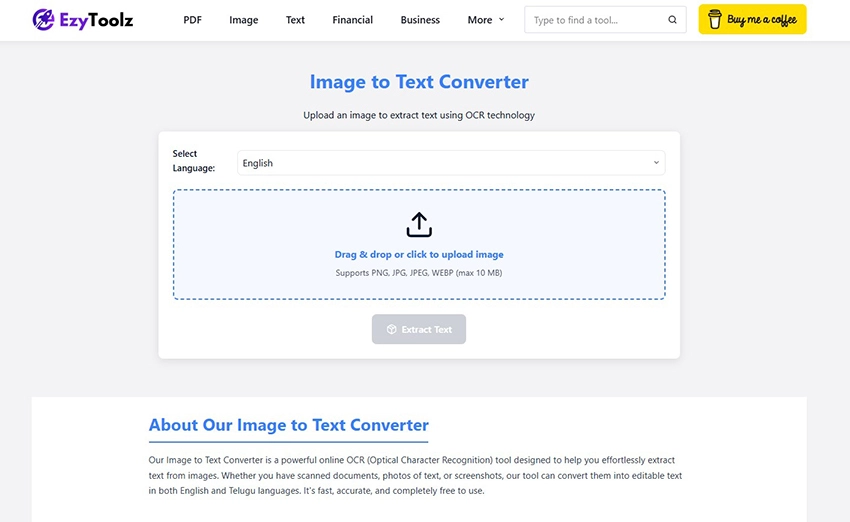
This image-to-text converter uses cutting-edge Optical Character Recognition (OCR) technology to get the job done right. It makes it easy and extract text from an image. One of the best things about it is that it can read and write in more than one language. This makes it quite handy for a wide range of users. The tool can read and edit standard file types including PNG, JPG, and WEBP and turn them into text that can be searched.
Benefits of using this Image to Text Converter:
- Digitize Everything: You can instantly turn paper papers, book pages, receipts, and handwritten notes into digital text.
- Save Massive Time: You won’t have to retype information from photographs by hand, which will make you more productive.
- Multi-Language Power: This program can accurately extract text in both English and Telugu, which is not something that many free tools can do.
- Makes it easier to read: It changes text that is trapped in images into a format that screen readers can read.
Use Case: This tool is a godsend for people who need to copy text from a photograph. It’s the best way to learn how to retrieve text from a scanned page without typing it out again. Students can take a picture of a page in a textbook and obtain digital notes right away. Professionals can use it to turn invoices or reports into digital files by converting JPG files to text. For creators, it’s the best free online tool to change telugu images from news articles or social media postings into text.
How to Use:
- Select Language: First, choose whether the text in your image is in English or Hindi or Telugu (తెలుగు).
- Upload Your Image: Drag and drop your image file (PNG, JPG, etc.) onto the upload area, or click to browse and select it from your device.
- Extract Text: Click the “Extract Text” button to start the Extract Text(OCR) process.
- Copy & Download: A box will show the text that was taken out. You may then copy it to your clipboard with one click or save it as a .txt or .pdf file.
Pro Tip: If your first result isn’t very accurate (which can happen with hazy or low-quality photographs), check for the “Improve Image Clarity” button. This special tool improves the quality of your image by using filters and then runs the OCR again. This typically leads to a lot more accurate text extraction. It’s a great second chance to acquire the right outcome without needing to use another tool.
Online Passport Photo Maker
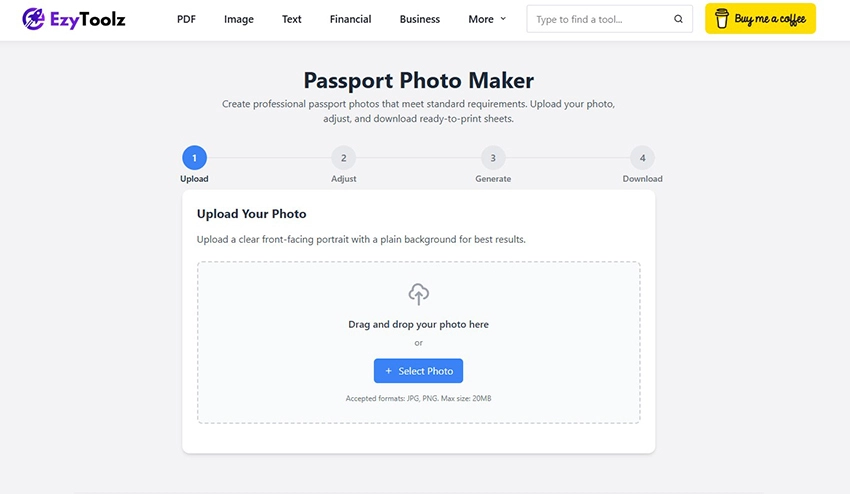
This is one of the most practical online image converters for official documents, acting as an all-in-one passport photo maker and free passport photo editor with background that guides you through creating official, compliant photos. The tool simplifies the entire process, allowing you to upload a photo, precisely crop it to official dimensions, change the background color, and even apply advanced image filters. It supports standards for many countries (USA, UK, India, etc.) and generates a print-ready sheet.
Benefits of using this Passport Photo Maker:
- Save Money & Time: Discover how to create your passport photo at home for free without incurring expensive photo booth fees, getting it completed in minutes instead.
- Guaranteed Compliance: Using preset sizes for specific countries, you can rest easy knowing your photo meets their specific requirements for width, height and composition.
- Full Creative Control: With Photobooth you have complete creative freedom when taking multiple photos and selecting your favourites for editing in our built-in editor, enabling you to tweak brightness, contrast, and more for the ideal look.
- Print-Ready Output: The tool automatically assembles multiple photos onto a standard sheet size such as 4×6 or A4, making printing simple at home or local shops.
Use Case: This is the perfect tool for anyone who needs to create passport size photo online. It works as a 2×2 inch photo maker online for US passport renewals, helps you prepare photos for a Schengen visa application, and is a great general ID photo creator. It’s also great for creating photos for job applications, school IDs, or any other document that requires a professional, standardized headshot.
How to Use:
- Upload Photo: Upload a clear, front-facing photo with a plain background.
- Adjust & Crop: Select your country’s standard (e.g., USA 2×2 inch). Use the cropper to zoom and position your face correctly within the guidelines.
- Customize: Choose a background color (white is standard) and apply optional filters to enhance brightness or contrast if needed.
- Generate & Download: The tool will create a preview of your photo sheet. If it looks good, proceed to download the final sheet as a high-quality JPG or PNG file, ready for printing.
Pro Tip: After uploading your photo, the tool provides a helpful link to an external background removal service. For the absolute best results, use that service first to get a photo with a transparent background. Then, upload that transparent image to this tool. This will allow you to apply a perfectly clean, solid-colored background (like the required white or light blue) for a truly professional finish.

Image Compressor – Advanced Tool
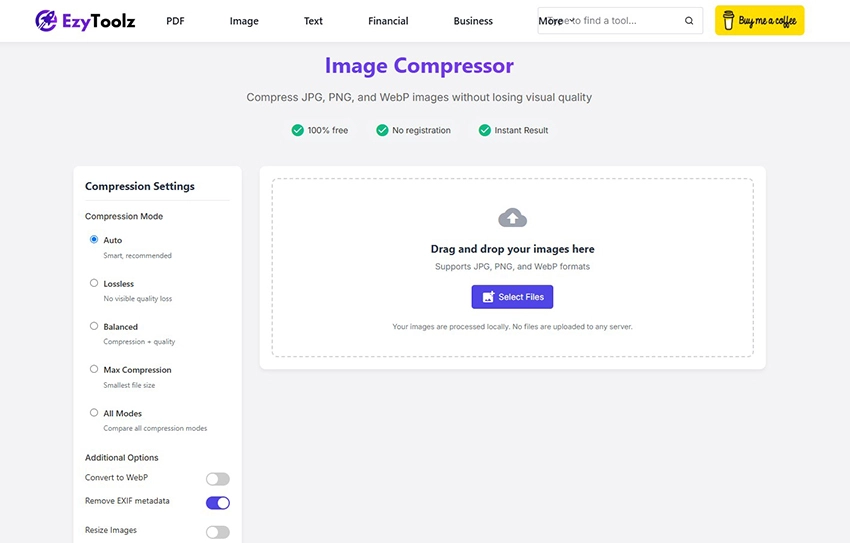
This image compressor uses AI-powered technology to reduce file sizes of JPG, PNG and WebP images without suffering significant quality loss. Operating directly within your browser, it offers multiple compression modes (Auto, Lossless, Balanced Max), an option to convert to WebP format as well as artificial intelligence-powered enhancements for superior results.
Benefits of using this Image Compressor:
- Enhance Website Speed: Smaller images mean quicker page load times, which are essential for SEO and user experience.
- Guaranteed Privacy: Compression occurs exclusively on your local computer; images never get uploaded to any server.
- Find a Balance: The Comparison View allows you to visually evaluate both quality and file size savings to select the ideal option.
- Advanced Control: Go beyond simple compression by resizing images, removing EXIF data, and using AI to fine-tune the output.
Use Case: This tool is an indispensable resource for anyone attempting to reduce image file sizes online. Web developers can utilize its “Lossless” mode to optimize images for website performance while bloggers and marketers can compress photos for instantaneous article load times, while making lightweight images for email campaigns. Compress multiple images at the same time simply by dragging-and-dropping, while its lossless mode provides the ideal answer to the often asked question of how to reduce PNG file sizes without losing quality.
How to Use:
- Upload Images: Drag and drop one or multiple JPG, PNG, or WebP files into the upload zone.
- Choose Settings: Select a compression mode (Auto is great for beginners). You can also choose to resize or convert to WebP.
- Process & Compare: This tool automatically compresses images for comparison in the results area using slider. Compare original and compressed versions side-by-side by adjusting this slider.
- Download: Download individual compressed images or acquire them all together in one ZIP file.
Pro Tip: For optimal comparisons, choose “All Modes” in the settings before uploading images. This way, the tool will process each of its modes (Lossless, Balanced and Max) individually and display an individual result card for each mode allowing you to easily compare outputs and confidently select one with optimal file size reduction while maintaining quality standards.
Image to PDF Converter
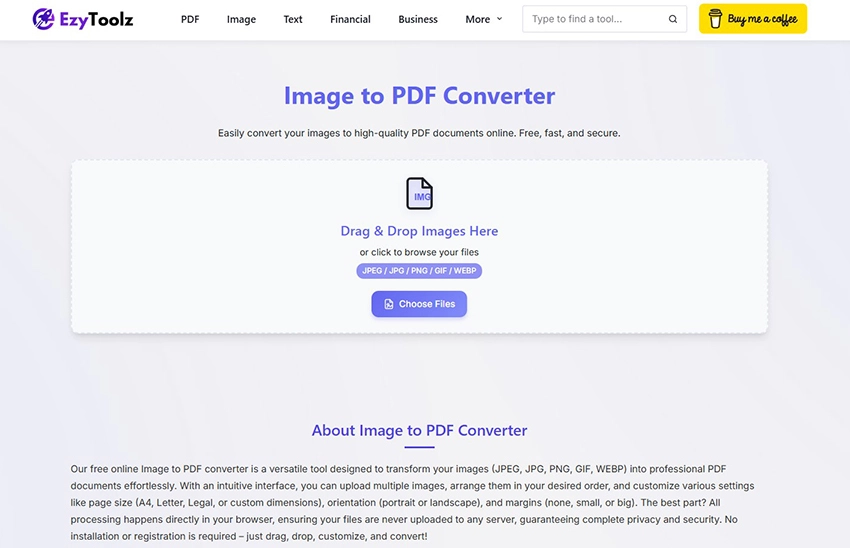
What it does: This Image to PDF converter lets you quickly and safely turn a lot of photographs into professional PDF documents. It works with JPG, PNG, GIF, and WEBP files, among other formats. This application is different from others since it does all of its processing in your browser, so you don’t have to upload anything to a server. This gives you full control over how to reorder photos before making PDFs in sizes like A4 Letter (for page orientation and margin settings), etc.
Benefits of using this Image to PDF Converter:
- Ultimate Privacy: Since files do not get uploaded, any sensitive images and documents remain private and secure on your computer.
- Full Customization: In contrast with basic converters, full customization enables you to fully control the layout of the PDF you create including page size, orientation and margins.
- Combine Multiple Files: Quickly merge multiple JPEGs into a PDF document by reordering them to create one cohesive document.
- No Software Installation Needed: Our system runs completely online in your browser without the need to download or install any additional software.
Use Case: This tool is ideal for anyone seeking to combine multiple pictures into one PDF file, from students who need help compiling photos of handwritten assignments into submittable files to professionals looking to convert scans of receipts, contracts or reports into an easy-to-share PDF format. Furthermore, this is ideal for personal use such as creating an album from vacation photos or archiving important documents.
How to Use:
- Upload Images: Simply Drag and drop all the images you want to convert, or click to browse and select them.
- Arrange and Customize: Within the preview area, drag image thumbnails to rearrange them in their appropriate order. Utilize the Options Panel to set desired page sizes, orientations and margins.
- Merge (Optional): If you want all images combined into one PDF file, check off “Merge all images into a PDF file”.
- Convert to PDF: Clicking “Convert to PDF” will instantly process your files and deliver a PDF copy directly to your device.
Pro Tip: Before converting, it is possible to directly rotate individual images in the preview area by clicking the rotate icon next to each thumbnail. This feature is ideal for correcting photos that were taken incorrectly and ensures every page of your final PDF looks perfect without needing to edit images separately.
Conclusion
In 2025, the right image tool isn’t just a convenience—it’s a necessity. From creating engaging social media posts with the Text-to-Image Maker to saving critical seconds on your website’s load time with the Image Compressor, each tool in this list serves a unique and vital purpose. By choosing the right converter for your task, you can save time, improve your workflow, and ensure your visual content always looks its best. We encourage you to explore these free, simple, and smart tools to see how they can elevate your next project.