How to Convert Image Formats Online Without Uploading Files (Free & Private)
Introduction
You drag an image into an online converter, wait 20 seconds for it to upload to some server in another country, and then wonder — did my photo just go somewhere I can’t control?
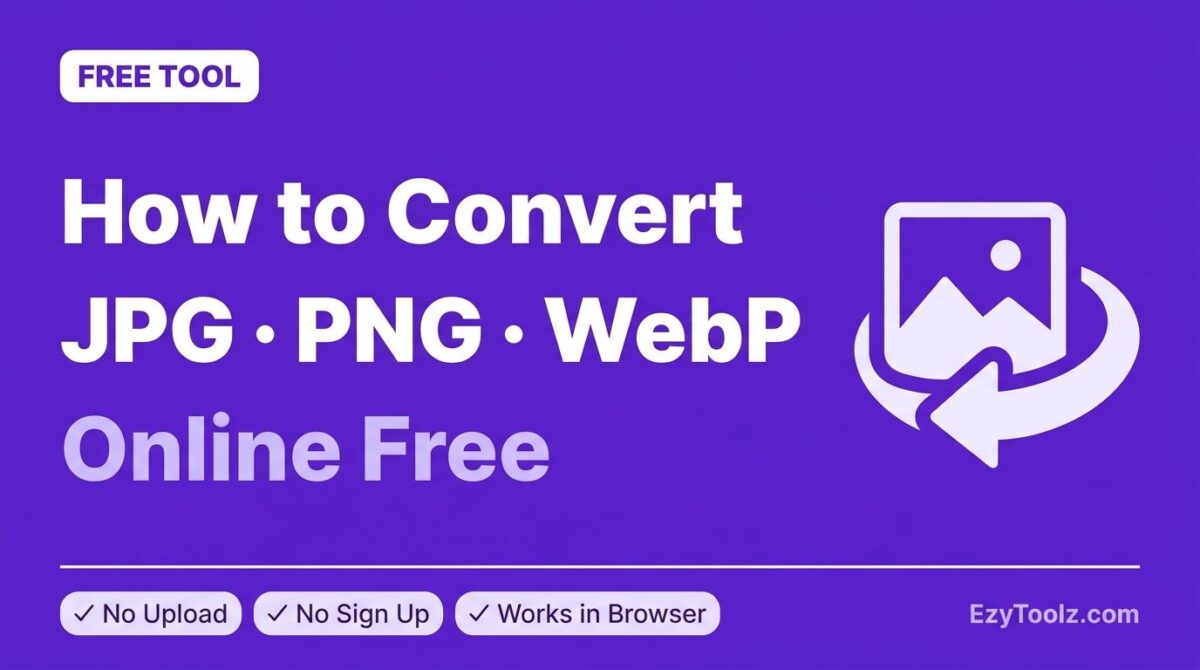
That frustration is exactly why browser-based image converters exist. They run entirely inside your browser. No upload. No account. No waiting. Your image never leaves your device.
This guide shows you exactly how to convert image formats online — including JPG, PNG, WebP, AVIF, GIF, BMP, TIFF, and ICO — in seconds, for free, with complete privacy.
What Is a Browser-Based Image Converter?
A browser-based image converter uses your device’s own processing power (via the HTML5 Canvas API) to transform one image format into another. Instead of sending your file to a remote server, the conversion happens right inside your browser tab.
Why this matters:
- No file size limits — your device’s memory is the only cap
- No waiting for uploads or downloads from a server
- Your images stay private — they never touch any third-party server
- Works offline once the page has loaded
- Free with no daily conversion limits
5 Situations Where You Need an Image Converter Right Now
1. iPhone Photos Won’t Open on Windows (HEIC → JPG)
Apple devices shoot photos in HEIC format by default. Windows, most websites, and older apps don’t support HEIC. Converting HEIC to JPG takes seconds and makes your photos universally compatible.
2. PNG Files Are Too Large to Email or Upload
PNG is lossless, which means high quality but large file sizes. Converting PNG to JPG (which uses compression) typically reduces file size by 60–80% with barely noticeable quality difference.
3. Website Images Slowing Down Your Page Speed
Google’s Core Web Vitals penalise slow-loading pages. WebP images are roughly 25–35% smaller than equivalent JPG files at the same visual quality. Converting your images to WebP is one of the fastest ways to improve page speed.
4. Your Logo Needs a Transparent Background
JPG does not support transparency. If you need a transparent background — for a logo, watermark, or icon — PNG is the correct format. Converting JPG to PNG preserves the image data while giving you a format that supports transparency.
5. Converting Images for a New Website or App Format
Modern web formats like AVIF offer exceptional compression with high quality. If you’re building a performance-focused website, converting your media library from JPG to AVIF can dramatically reduce bandwidth and improve load times.
How to Convert Image Formats Online — Step by Step
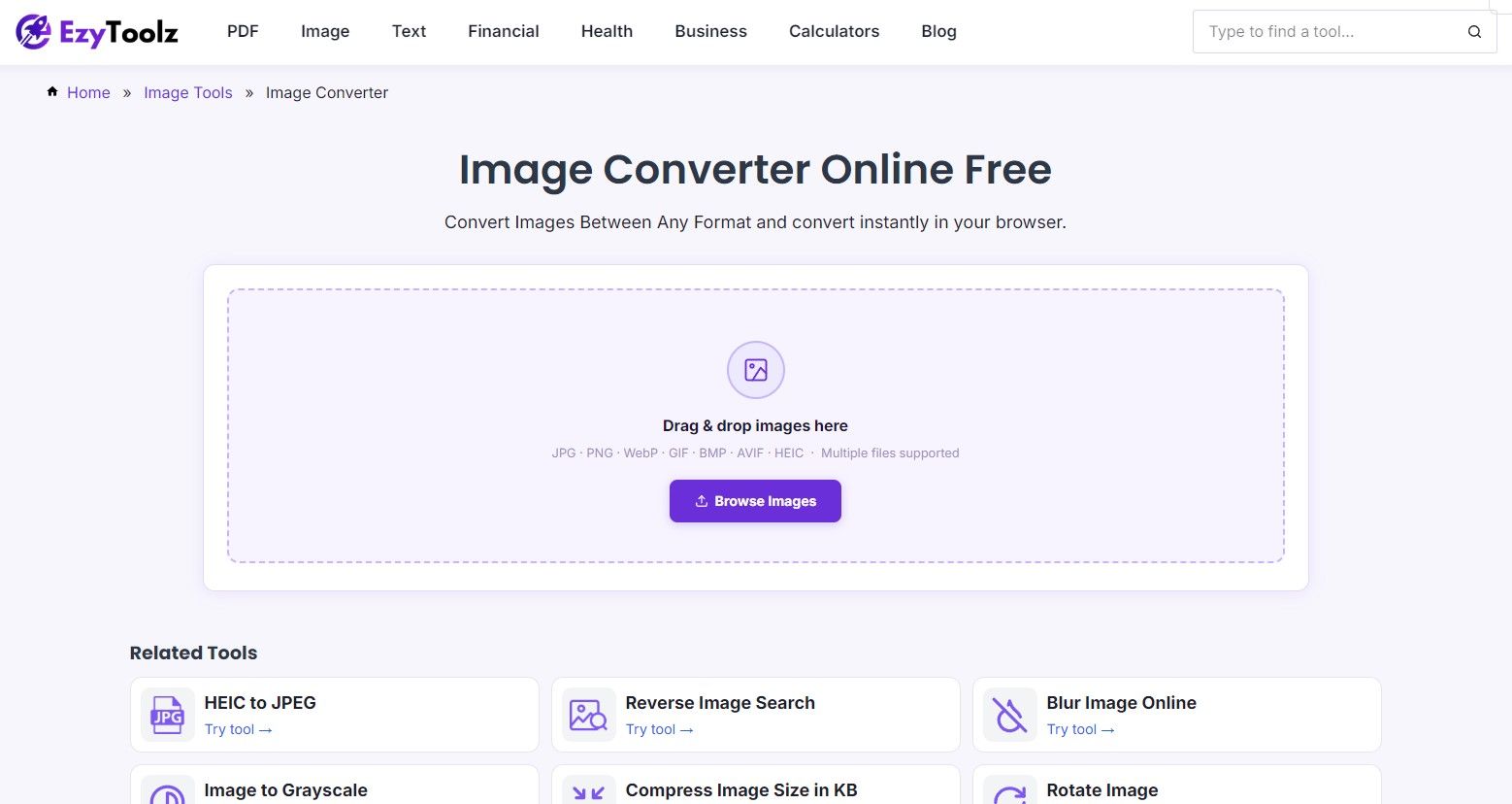
Using EzyToolz Image Converter (the tool on this page), here’s exactly what to do:
Step 1: Upload your images
Drag and drop one or multiple images onto the upload area, or click “Browse Images” to select files from your device. The tool accepts JPG, PNG, WebP, GIF, BMP, AVIF, HEIC, and TIFF.
Step 2: Choose your output format
Use the dropdown next to the arrow (→) to select your target format. The tool automatically suggests a sensible default — if you upload a JPG, it will suggest PNG, and vice versa.
Step 3: Click Convert All
The conversion happens instantly in your browser. For a 5MB JPG, conversion typically completes in under one second.
Step 4: Download your files
Download each file individually with the Download button next to each image, or click “Download All as ZIP” to get every converted file in a single compressed archive.
That’s it. No account needed. No email required. No files uploaded anywhere.
Which Image Format Should You Use? (Quick Reference)
| Format | Best For | Supports Transparency | File Size |
|---|---|---|---|
| JPG | Photos, realistic images | ✗ No | Small |
| PNG | Graphics, logos, screenshots | ✓ Yes | Medium–Large |
| WebP | Web images (photos + graphics) | ✓ Yes | Very Small |
| AVIF | Next-gen web images | ✓ Yes | Smallest |
| GIF | Simple animations | ✓ Yes (limited) | Medium |
| BMP | Windows compatibility | ✗ No | Very Large |
| TIFF | Print, archiving | ✓ Yes | Very Large |
| ICO | Favicons, desktop icons | ✓ Yes | Small |
JPG vs PNG — Which Should You Choose?
This is the most common conversion question, and the answer depends entirely on your use case.
Choose JPG when:
- Your image is a photograph
- You need the smallest possible file size
- Transparency is not required
- The image will be viewed on screen, not printed
Choose PNG when:
- Your image has text, sharp lines, or flat colour areas
- You need a transparent background
- You plan to edit the image multiple times (no generational quality loss)
- File size is not a concern
Quick rule: Photo → JPG. Logo or graphic → PNG.
PNG to WebP — The Easiest Website Speed Win
If your website uses PNG images for photos or decorative elements, switching to WebP is one of the simplest performance improvements you can make.
WebP was developed by Google specifically for the web. It supports both lossy and lossless compression, includes transparency support like PNG, and produces files that are consistently smaller than PNG or JPG at equivalent visual quality.
All modern browsers — Chrome, Firefox, Edge, Safari (since 2020) — support WebP. For most websites in 2026, there is no reason not to use WebP.
Converting a 2MB PNG banner to WebP typically results in a file around 400–700KB — a reduction of 60–80% with no visible quality difference.
HEIC to JPG — The iPhone Photo Problem Solved
Since iOS 11, iPhones capture photos in HEIC (High Efficiency Image Container) format by default. HEIC files are roughly half the size of equivalent JPGs, which is why Apple chose it.
The problem: HEIC is not universally supported. Windows Photo Viewer, most image editing apps, and many websites require JPG or PNG.
Converting HEIC to JPG instantly solves compatibility issues. The EzyToolz converter handles HEIC input — simply upload your iPhone photos and select JPG as the output format.
Batch Image Conversion — How to Convert Multiple Images at Once
Converting images one by one is tedious. The EzyToolz Image Converter supports batch processing out of the box.
To convert a batch of images:
- Drag multiple files onto the upload area at once (or hold Ctrl/Cmd and select multiple files)
- Set your output format once — it applies to all files
- Click Convert All — every image is processed simultaneously
- Use “Download All as ZIP” to get all converted files in one download
This is particularly useful for:
- Converting an entire product photo library from PNG to WebP
- Preparing a batch of HEIC photos from your iPhone for a Windows PC
- Building a set of favicons from existing images (ICO format)
Why Browser-Based Beats Server-Based Converters
Most popular image converters — Convertio, Zamzar, CloudConvert — upload your files to external servers.
That means:
- Your images travel over the internet to a server you don’t control
- Conversion time includes both upload and processing time
- Free tiers have daily conversion limits and file size caps
- You have to trust the service’s privacy policy regarding file deletion
Browser-based tools like EzyToolz eliminate all of these concerns. The conversion algorithm runs in your browser using standard web APIs. Nothing is transmitted. There are no limits. There is nothing to trust because nothing leaves your device.
Frequently Asked Questions
Is it safe to convert images online?
With EzyToolz, yes — completely. The conversion runs in your browser. Your images are never uploaded to any server. You can even disconnect your internet after the page loads and the converter will still work.
Can I convert HEIC files from my iPhone?
Yes. Upload your HEIC files and select JPG or PNG as the output format. The converter handles HEIC input directly in the browser.
Will converting JPG to PNG improve quality?
No. Converting from a lossy format (JPG) to a lossless format (PNG) does not restore quality that was lost when the JPG was created. It will, however, prevent any further quality loss from future saves.
What is the difference between WebP and AVIF?
Both are modern web formats designed for small file sizes and high quality. AVIF generally achieves better compression than WebP, but browser support for AVIF is slightly more limited (Chrome and Firefox support it fully; Safari requires macOS Ventura or later). For maximum compatibility, WebP is the safer default choice.
Is there a file size limit?
No. Because the conversion happens in your browser rather than on a server, the only limit is your device’s available memory. In practice, this means files up to several hundred MB convert without issues.
Can I convert multiple images at once?
Yes. Drag multiple files onto the upload area. Set your output format once. Click Convert All. Download everything as a ZIP.
Summary
Converting image formats online doesn’t need to be complicated, slow, or risky. A browser-based converter gives you instant, private, unlimited conversions without ever leaving your device.
Whether you’re converting iPhone HEIC photos to JPG, switching your website images to WebP for better performance, or preparing a batch of images for a new project, the process takes seconds.
No account. No upload. No limits.